
How to Restore Lost Photos on iPhone (2025 Guide)
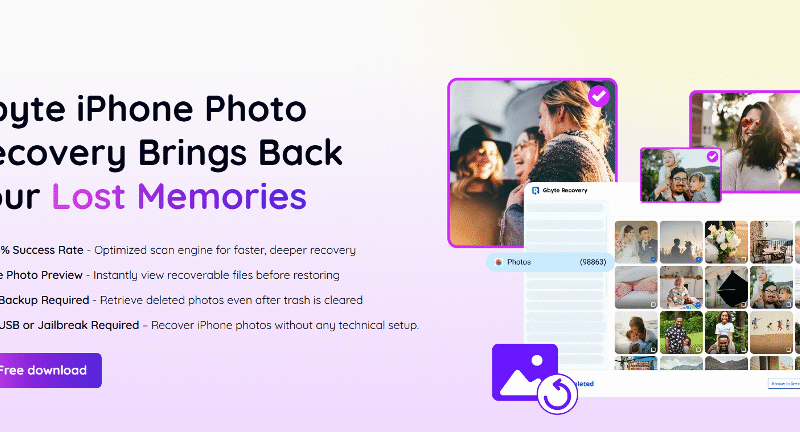
Losing your cherished photos on iPhone can feel like watching memories slip through your fingers. One moment, your camera roll sparkles with snapshots of laughter, travel, and special moments. The next? It’s emptier than you expected — like your memories vanished into thin air. If this sounds painfully familiar, you’re not alone.
In 2025, with iOS updates and tighter privacy controls, restoring lost photos on iPhone has become trickier but far from impossible. This guide is designed to bring those precious images back — whether you accidentally deleted them, lost them during an update, or faced a sudden device glitch. Stick with me, and you’ll learn the safest, most effective ways to get your photos back — even if previous attempts left you frustrated.
Built-in Ways to Recover Lost Photos on iPhone
Before diving into the tech-heavy stuff, don’t underestimate what’s already baked into your iPhone.
- Recently Deleted Folder:
Your iPhone is kind enough to keep deleted photos around for 30 days. Open the Photos app, tap Albums, scroll to Recently Deleted, and check if your pictures are lounging there, waiting to be rescued. - iCloud Photo Library:
If you use iCloud Photos, your images might still be floating in the cloud, safely synced across devices. Sometimes toggling iCloud Photo sync off and on can coax those elusive photos back to your device. - Device Backups via Finder or iTunes:
If you regularly back up your iPhone to a computer, these backups could hold your missing photos. Restoring from backup might feel like a leap of faith — it’s a bit like hitting rewind on your device’s life — but often it’s worth trying.
If these methods haven’t worked for you, don’t lose hope just yet. Sometimes, built-in tools fall short, and that’s when turning to a trusted software in photo recovery for iPhone can make all the difference, digging deeper to unearth those lost memories.
When Built-in Methods Fail: Use Photo Recovery for iPhone Software
It’s frustrating to get stuck in the cycle of “restore, fail, restore again.” That’s precisely when dedicated recovery software can make a real difference. These programs dive beneath the surface, scanning your iPhone’s internal storage for lost photos that traditional methods simply can’t reach.
Among many choices, Gbyte Recovery stands out for its seamless support of the latest iOS 2025 and its focus on iPhone photo restoration. Unlike generic tools that sift through all files indiscriminately, Gbyte targets exactly what matters—your photos—making recovery faster and less confusing.
Here’s a quick comparison showing how Gbyte Recovery measures up against other popular options:
| Feature | Gbyte Recovery | Dr.Fone | UltData |
| Optimized for iPhone Photos | ✅ Yes, dedicated scan | ❌ General recovery | ❌ General recovery |
| Works Without Backup | ✅ Yes | ✅ Yes | ✅ Yes |
| Supports iOS 17+ | ✅ Fully compatible | ✅ Compatible | ✅ Compatible |
| Preview of Recoverable Photos | ✅ Clean & categorized | ❌ Basic preview | ❌ Basic preview |
| Scan Duration | ⚡ ~7 minutes | ~10 minutes | ~11 minutes |
| Pricing (Monthly) | $49.99 | $59.95 | $45.99 |
Key Feature of Gbyte Recovery
Once you’ve decided to use Gbyte Recovery, knowing how to leverage its features can dramatically improve your chances of a successful recovery.
- Designed specifically for iPhones, it understands Apple’s ever-evolving file structures.
- Its fast scanning engine means you won’t be waiting around for hours.
- The preview feature is intuitive — you see your photos organized by date and album, not just a random file dump.
- Plus, it can recover photos even if you didn’t have any backup, which is often the case when sudden data loss strikes.
In short, Gbyte feels like a smart assistant who knows exactly what you want and where to find it.
So, if you want a tool that feels less like a confusing labyrinth and more like a helpful guide, Gbyte fits the bill perfectly. For those curious about the nitty-gritty, you can get full Gbyte Recovery review to explore how this software truly performs in real-life scenarios.
Step-by-Step Guide: How to Restore Lost Photos Using Gbyte Recovery
Getting your photos back doesn’t have to be a tech nightmare. Here’s how straightforward it can be:
- Download and install Gbyte Recovery on your computer.
- Launch the software and connect your iPhone without USB
- Select “Photos” as the data type you want to scan.
- Hit “Scan” and watch as Gbyte digs through your device.
- Preview recoverable photos, you can only select what exactly you want to restore.
- Click “Recover” to save them to your computer or directly back to your iPhone.
That’s it! No complicated backups or risky resets required. Just click, scan, preview, and restore.
Pricing: Is Gbyte Recovery Worth the Cost?
Fair question — everyone wants value, especially when it comes to software that promises to rescue treasured memories.
Gbyte Recovery offers a monthly subscription at $49.99, which is competitive considering its speed, accuracy, and user-friendly design. There’s also a free trial allowing you to scan and preview recoverable photos before committing, which gives you a risk-free peek at what’s retrievable.

Compared to some pricier tools that charge upwards of $60 per month and less precise results, Gbyte balances cost and capability well.
If you treasure your photos — and who doesn’t? — investing in a reliable recovery solution feels more like buying peace of mind than splurging.
Tips to Avoid Losing Photos on Your iPhone in the Future
Prevention feels so much better than recovery. Here’s how to keep your photo library safe and sound:
- Enable iCloud Photos and verify it syncs regularly.
- Set your iPhone to auto-backup via iCloud or your preferred computer.
- Regularly transfer photos to an external drive or cloud service like Google Photos.
- Avoid deleting photos from one device without checking if they sync to all your Apple devices.
- Use trusted recovery tools proactively if you notice missing files early.
These habits create a safety net so your memories stay intact — no matter what life throws at your phone.
Final Thoughts: Restore Lost Photos on iPhone with Confidence in 2025
If you’re reading this, chances are you’ve been through that heart-sinking moment when photos vanish unexpectedly. It’s painful, no doubt about it. But here’s a comforting truth — in 2025, recovering lost iPhone photos isn’t just wishful thinking. With smarter software like Gbyte Recovery, powerful built-in tools, and a bit of know-how, those snapshots of your life don’t have to be gone forever.
If you want to dive deeper into Gbyte’s capabilities, you can get full Gbyte Recovery review to see if it’s the right fit for your situation.
Your photos tell your story. Don’t let them fade away. Act now, and bring your memories back to life.