
Is your HDMI not working on Mac? Here are some fixes!
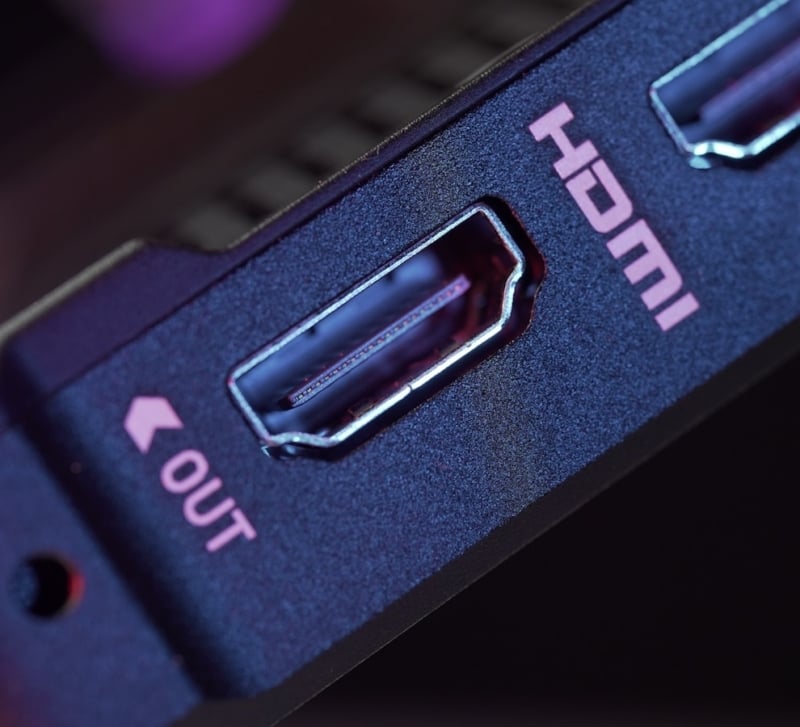
Having issues with your HDMI port or connection is challenging, because many of us rely on an external monitor to work every day. Naturally, it matters to figure out why is the HDMI causing issues, and then you have to find some fixes. Thankfully, that process is rather simple to do, and here’s what you need to know.
Why is your HDMI not working?
- One of the main reasons might be faulty HDMI cables or adapters
- There might also be incorrect display settings, so check those beforehand
- Mac OS Compatibility problems could also be a concern
- Think of hardware issues as well, a damaged HDMI adapter or port can prevent a stable connection
- The same thing is valid when it comes to power supply issues
Check the HDMI cable and adapter
One of the first things to do when you have HDMI not working on Mac is to assess the adapter and cable. Test out different cables, in case your existing one doesn’t seem to be working. It also helps to have another adapter on hand, just to be on the safe side if possible. And also, check to ensure that the power source isn’t either damaged or broken, which does happen at times.
Restart your Mac
The idea here is that you want to turn off the Mac, unplug the HDMI cable and adapter, and then wait around 30 seconds to reconnect everything. Turn on the external display first and then you can turn the Mac on. And yes, a restart might also come in handy, depending on the situation. The idea is to restart first and then if it doesn’t solve the issue, try the turning off method as well.
Manually detect displays
In order to do that, you can go to the system settings and then choose Displays. As you hold down the Option key, you will have the option to detect displays. Choose the one that you want and hopefully that will solve the issue.
Run maintenance tasks
Running a few maintenance tasks is another good idea that you can focus on. These can sometimes fix the HDMI issues as well. And when it comes to what type of work you need to do, that can be anything from flushing the DNS cache to reindexing the spotlight, repairing the disk permissions and so on. A Mac cleanup tool will streamline this process and make it better, which is exactly what you need to take into consideration.
Do some Mac OS updates?
Another important aspect is to assess the Mac OS updates and do them when they appear. The interesting thing is that Apple does fix some of the issues that arise. So it definitely makes sense for you to try and perform updates when necessary. It doesn’t seem like a lot at first, but upgrades can make a massive difference, and it’s imperative to perform them, just to be on the safe side.
Try out a different HDMI port or monitor
The idea is that checking another monitor or port might come in handy. The issue a lot of the time is that your monitor or TV might have a defective HDMI port. If that’s not the case, it could be related to your Mac, for example. It makes sense to try and address this situation firsthand, so you can prevent any problems down the line.
It makes sense to double or even triple-check stuff and ensure that everything works the way that it should. At times, the port from your TV or monitor might not be working fine, or there are conflicts. The last thing you want is to change your MacBook’s own port which is working fine, just because you never double-checked. So yes, addressing things properly can be crucial here, so keep that in mind.
When you have a MacBook with Apple Silicon, so basically an M1-M4 chip, it’s extremely important to use an USB type C to HDMI adapter or a hub. Making sure that it supports the display resolution and the refresh rate is crucial, as that will help offer you the best experience. Additionally, you want to perform any hardware checks first, before you start thinking that there are software problems. That way, you are narrowing down a potential cause.
Conclusion
It’s always very important to understand the cause behind any Mac issue, especially when a port is not working properly. Sometimes, the issue stems from hardware problems, but it could be software-related. That’s why we recommend studying all these issues, figuring out where they come, and then slowly apply all the guidelines. Sometimes, replacing a physical HDMI port might be necessary. But a lot of the time, this can be due to Mac OS or hardware issues. Addressing that problem firsthand is crucial, and it’s definitely going to make things better in the end!