
How to Delete Photo Background for Free in Windows – No App to Install
A good photo can have an inconvenient background: laundry behind a portrait, a kitchen counter beneath a product, or a dark wall that looks out of place in a document. Removing that background lets you reuse the subject without taking another picture.
This guide walks through 3 practical options to erase background free on Windows: Microsoft Paint, Microsoft Word, and UltraPic. None requires installing a separate photo editor, provided you already have a compatible version of Paint or Word.
Method 1. Remove an Image Background in Microsoft Paint
For a quick cutout on Windows 11, check Paint first. Supported versions include a background-removal button that automatically separates the subject from its surroundings.
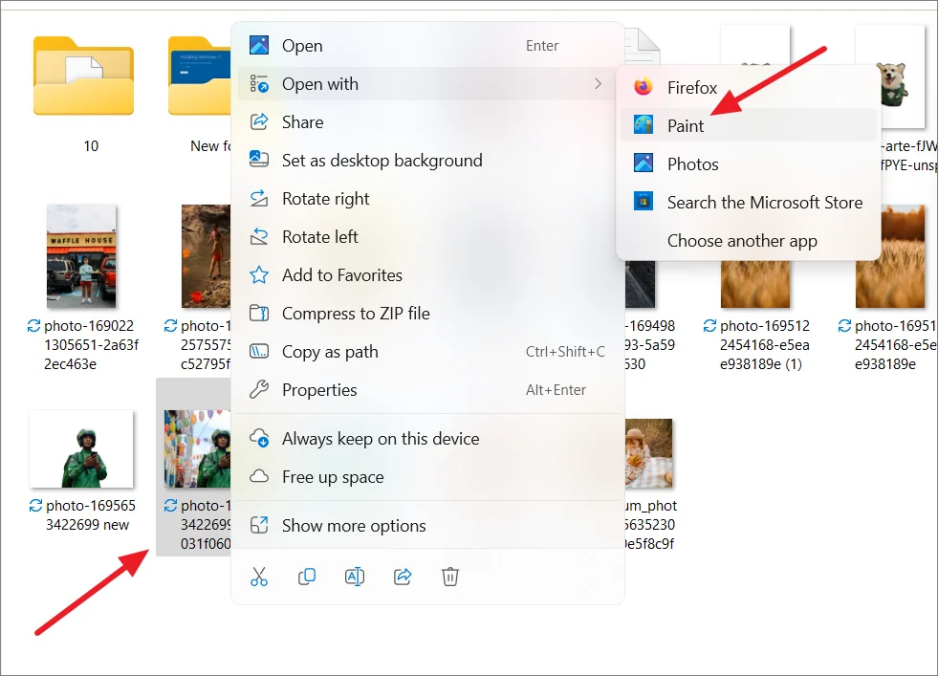
Step 1. Make a copy of the original photo. Then, right-click your photo in File Explorer and choose Open with > Paint.
Step 2. Find Remove background in the toolbar. Hover over the icons if their labels are hidden.
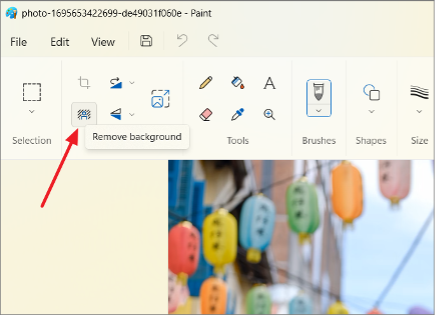
Step 3. Click it and inspect the cutout. The checkerboard pattern indicates transparent areas.
Step 4. If Paint removes something you wanted to keep, press Ctrl + Z. Try selecting the subject’s area before running background removal again.
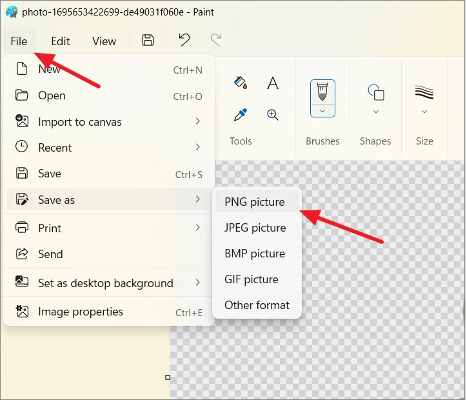
Step 5. Choose File > Save as > PNG picture. Give the edited image a new name to preserve your original.
Can’t find Remove background? Classic Windows 10 Paint does not offer the same automatic tool. On Windows 11, check for a Paint update in Microsoft Store, or use the browser method below.
Method 2. Remove a Picture Background in Microsoft Word
Word makes sense when the picture is already going into a report, flyer, or proposal. You can remove its background without leaving the document.
This method assumes you already have a licensed desktop version of Word. If you do not have Microsoft Office, it is recommended to look into other solutions. Purchasing Microsoft Office solely for the purpose of editing an image is not worthwhile; furthermore, these instructions apply to the desktop version of Word, not the web-based version.
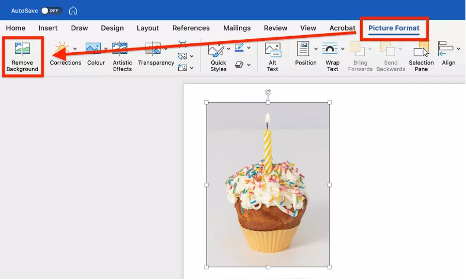
Step 1. Insert your image using Insert > Pictures. If the Picture Format tab is not visible, double-click the image.
Step 2. Select it, then open Picture Format > Remove Background. Word will mark the areas it plans to remove in magenta.
Step 3. Review the magenta overlay: those areas are marked for removal. Use Mark Areas to Keep to recover missing parts of the subject, or Mark Areas to Remove for leftover background.
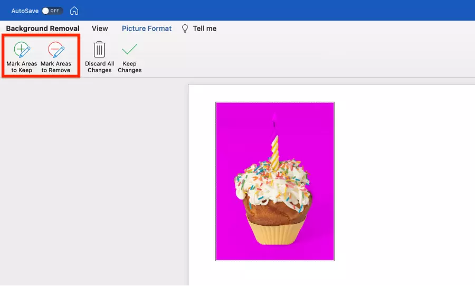
Step 4. Select Keep Changes. To reuse the cutout elsewhere, right-click it, choose Save as Picture, and select PNG.
Method 3. Delete a Photo Background Online with UltraPic
If Paint lacks the feature and Word is not installed, a browser-based editor avoids both obstacles. UltraPic is a free, browser-based AI photo editor. It accepts JPG and PNG images and uses an upload, automatic removal, and download workflow.
For someone looking to delete a photo background free without installing software, this is a straightforward place to start. It is particularly useful when you need a separate image file for a listing, presentation, or social post. Its main features for deleting photo backgrounds are:
- One-click AI removal – no manual outlining; the subject is detected automatically.
- Genuinely free – no watermark image export & 10 credits per week for free.
- No quality loss – images are processed and exported at their original resolution, including 4K.
- Refine Mask – eraser and restore brushes to clean up hair, fur and fine edges.
- Batch removal – process a whole product catalog or set of portraits in one go.
- Wide format support – JPG, PNG, BMP and WebP, exported as a transparent PNG.
Beyond background cutouts, UltraPic can also remove unwanted objects from photos, generate a brand-new backdrop with its AI Background Generator, retouch photos, and upscale resolution – all in the same browser tab.
Step 1. Open the UltraPic BG Remover in your preferred browser and drag an image into the workspace, or click to upload it. For batch image processing, navigate to the Batch Editor tool.
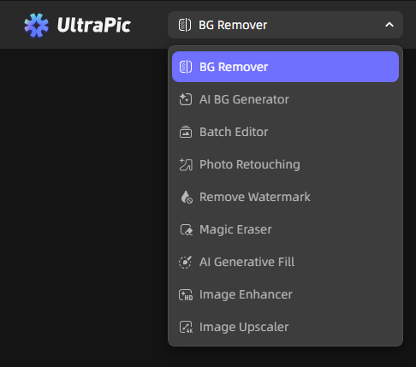
Step 2. Wait a few seconds until its AI removes the background automatically.
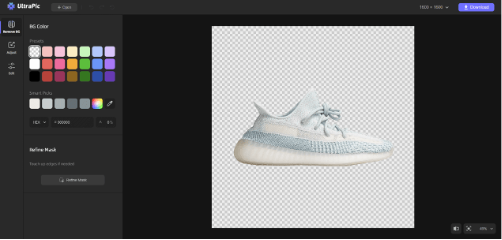
Step 3. Click Refine Mask and use the eraser or add tool to tidy rough edges or recover small details. (Generate BG is offered to place the subject on a new background.)
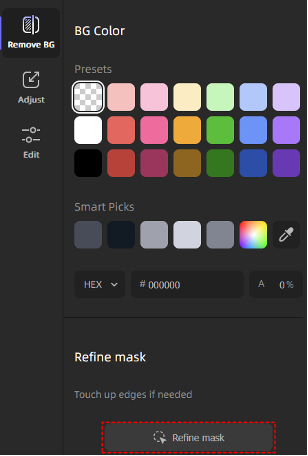
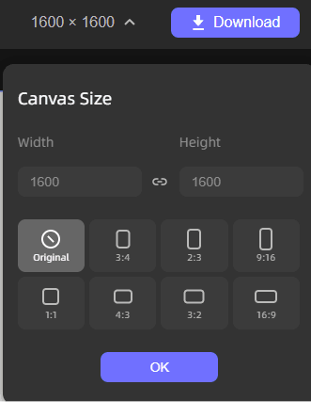
Step 4. Click Download to save the transparent image at full quality.
Summary
If you just need one photo cleaned up, Paint’s Remove Background is genuinely enough. And when you want to delete photo background for free for a large category of images, UltraPic handles it in your browser and lets you batch-process with one click.Whichever method you choose, keep the original, inspect the edges, and save transparent results as PNG.