
How To Keep Type Poster Edges With An AI Photo Editor
Poster campaigns die when the wordmark collapses before the print file is sent. A foundry sample can look sharp on the wall and still fail the moment a cleanup pass closes the counter of an e, or thickens a hairline that was meant to stay thin. Studios that publish type notes already treat that as a reject: the poster is a specimen, and the letters are the thing being shown. An AI Photo Editor belongs in the pass only when the instruction is to keep the face, not to invent a prettier alphabet. The check is plain. Set the file at the size it will be printed, and read every word the way a stranger would.
Letter counters close when a cleanup treats the poster as a portrait. PicEditor AI asks for an upload, a modification tool, and a written description of the edit. That path fits a stained margin or a bent corner better than it fits redrawing a whole family of glyphs. The claim worth judging is narrow. GPT Image 2 is the engine placed on text that has to render cleanly, on instructions that have to be followed, and on inpainting a region instead of the whole sheet. If the export changes the face, the file is wrong and the rework starts over from the vector.
Type Posters Fail On The Counter Not The Photo
A type poster is not a lifestyle photo with letters added later. The photograph, if there is one, is only the carrier. What the reader reviews is the counter of the o, the join where a stem meets a bowl, and the gap inside a stacked headline. Those shapes are small. A general “make it sharper” instruction does not know which edge is a design decision and which edge is dust. When the counter fills in, the word becomes unreadable at arm’s length even if the paper still looks clean on a phone.
Ink and paper make the same trouble before any model is involved. A poster shot under a raking light picks up a shadow inside the counter, and a phone crop then treats that shadow as part of the letter. The failure shows up as a stem that leans, a serif that sprouts a blob, or a second outline that was never in the font. None of that is a taste problem. It is a wrong letter. The file cannot go to print, and the afternoon disappears into a redraw that the type designer already finished once.
How The Upload Handles A Wordmark
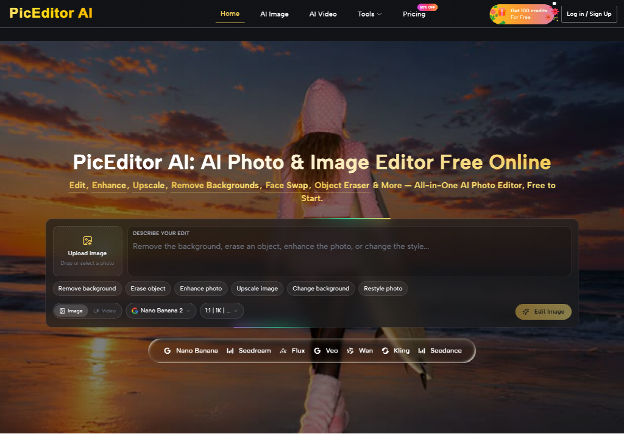
PicEditor AI keeps the path short on purpose. You upload the poster image, you select a modification tool, and you describe the edit. The description has to name the letter and the damage. “Clean the poster” is how a counter gets filled. “Remove the coffee stain on the lower margin and leave every letter untouched” is a job the tool can be judged on. After the export, read the word again at print size before the file leaves the desk.
- Upload the poster scan or the export you are about to send, not a tiny preview.
- Select the modification tool that matches the damage, such as a region edit rather than a full restyle.
- Describe the edit in plain words: what must change, and which letters must stay.
Upload The Poster And Name The Tool
Start from the file that already carries the real type, even if the photo around it is messy. A screenshot of a screenshot softens stems before the model does anything. If the poster is a scan, crop to the sheet and leave the letters large in the frame. Then pick the tool for the actual fault. Glare on the paper, a stray pen mark, or a background that crowds the wordmark are different jobs. Naming the tool is the check that stops a style transfer from rewriting the face.
Describe The Letter You Need Kept
Write the instruction as a printer would. Name the word, name the edge, and say what must not move. If only the margin is dirty, say the letters are frozen. If one scratched stem needs a repair, point at that stem and forbid a new serif. Precise instruction following is the point of using GPT Image 2 here, and intelligent inpainting is how a region can be repaired while the rest of the wordmark stays put. A vague prompt wastes the pass and creates rework.
What To Reject Before The File Leaves
Rejection is a reading test, not a vibe. Put the export next to the type file you trust, at the size the poster will actually be. If you cannot read the word without squinting, the pass failed. If a counter that was open is now a dot, the pass failed. If the model drew a second line under the headline because the prompt said “poster,” discard that export. The original scan is still the source. Do not stack a second prompt on a letter that already drifted.
A Stem That No Longer Matches The Face
Watch the places type people already circle. The thin join on an n, the tail of a y, the flat side of a grotesque s. A cleanup that “helps” contrast often thickens those joins until the face looks like a different cut. That result is unreadable as a specimen even when the poster still looks bold. Mark it wrong, go back to the upload, and narrow the description to the stain or the scratch. The letter is the brief. The photograph around it is not.
Color casts are a separate reject. A warm filter can make a black letter look brown and can make a white counter look pink. For a font poster, that is drift. Ask for the stain to go and for the ink to stay the ink. If the model also restyles the paper into a studio backdrop, the specimen is no longer the specimen. Time spent arguing about the backdrop is wasted time. The rework is another upload with a shorter sentence.
GPT Image 2 And Text That Has To Stay
The text claim is the one this poster job should actually use. GPT Image 2 is described as strong at rendering text, at following a complicated instruction, and at editing a chosen region rather than repainting the frame. That is why a wordmark repair belongs there, and why a full “make it cinematic” pass does not. An AI Image Editor can still be the wrong desk if what you needed was the original outline in curves. Use the image pass for pixels that got dirty. Keep the font file for the shapes that were drawn on purpose.
Inpainting matters more than a style label. A pen mark across one stem should be the only pixels that move. If the rest of the headline shifts by even a little, the tracking is no longer the tracking you set. Commercial use of the edited image is part of the offer, which matters when the poster is a client file and not a private sketch. It does not mean the underlying font license changed. The image right and the type license are different pieces of paper. Do not mix them up in the handoff note.
When Desktop Curves Are Still The Right Tool
Some posters should never be repainted. If you still have the layout file, fix the stain in the photo layer and leave the live type alone. Curves will always beat a generated stem when the foundry cut is the thing on sale. PicEditor AI does not replace a font editor, and it does not open the original layout. The budget for that job is the designer’s hour, not a generation. Spending the generation anyway is how a licensed face quietly becomes a lookalike.
The image route earns its place when the only file left is a photograph: a printed poster on a wall, a scan of a marked-up proof, a phone shot of a window display. Then the question is whether the letters survived. If they did not, stop. Order a new export from the person who has the font. A second prompt will not recover a counter that the first prompt closed. That limit is ordinary, and it saves the print slot.
A Poster File Worth Sending To Print
Release the poster when a stranger can read the word at print size and the face still matches the cut you named. PicEditor AI fits a studio that must clean a photographed poster without redrawing the alphabet, and it is a poor fit when the live type file is already on the desk. Keep the vector for the letters. Use the upload only for the damage around them.
If the stem drifted, reject the export and start again from the scan with a shorter instruction. If the counter stayed open and the stain is gone, the poster can move. That is the whole test.