
How to Turn Album Artwork into a Spotify Canvas Video with AI
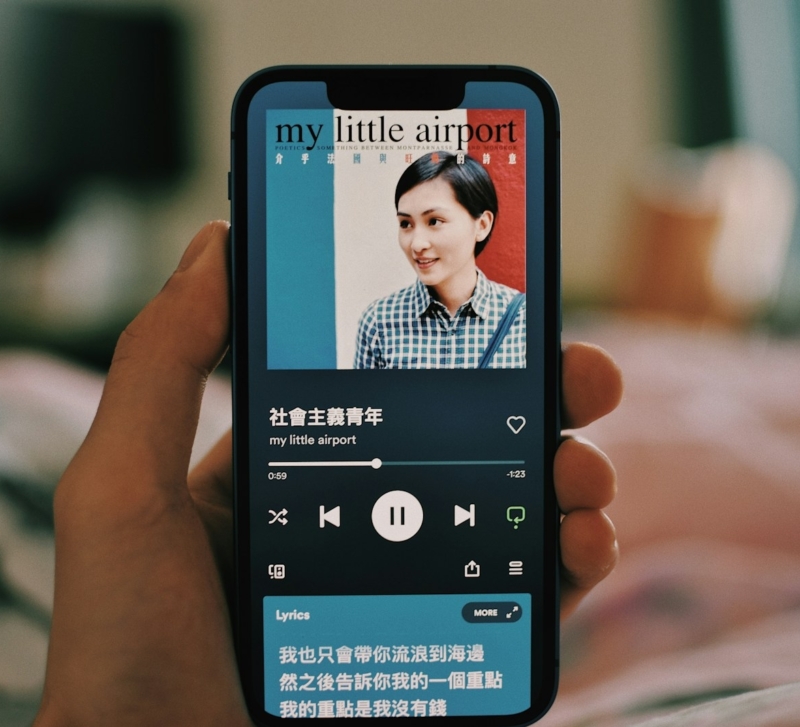
Already have an album cover? You can turn it into a Spotify Canvas—a short loop in the Now Playing screen—without shooting a video. The key is to preserve the design, fit a vertical frame, and make the motion repeat smoothly.
1. Fit Square Album Artwork into a Vertical Canvas
Most album covers are square, but Spotify Canvas uses a 9:16 vertical frame. Stretching the image can distort faces and lettering, while cropping may cut off the title.
Create a 540 × 960 frame in an image editor. Centering a 540 × 540 cover leaves 210 pixels above and below. Here’s how to use the space:
- Keep the square intact if it has prominent lettering or borders. Fill the space with a matching color or texture. This is safest for a finished JPG.
- Extend the scene for portraits or landscapes. Add sky, walls, or scenery, checking that the subject hasn’t changed.
- Crop carefully when important details are centered, as in some abstract artwork. Don’t cut off a title or portrait to fill the frame.
If the band’s name runs across the top, keep the full cover visible. Extending the background with a color from the artwork looks better than cutting into the title.
Save the original artwork and leave some breathing room around key details, as the edges may be cropped on different phones.
2. Choose Motion That Fits the Original Design
Choose one small movement that feels natural to the artwork.
For portraits, keep the face still while hair or background light moves. Landscapes suit drifting clouds or rippling water. Illustrations might have falling leaves; abstract art can use gentle texture changes.
Let the artwork set the pace. A minimalist acoustic cover may only need changing light; an electronic release might suit more noticeable movement. Neither needs rapid cuts.
AI video models create new frames rather than simply moving the original image. As a result, letters can change shape, spacing, or even spelling. Asking AI to keep the text unchanged may help, but it isn’t a guarantee.
If you have the layered design file, animate a version without text, then add the original lettering back in a video editor. If you only have a flattened JPG, leave the whole square cover still and animate the background around it. That way, you won’t need to recreate the lettering at all.
3. Turn Your Artwork into Video with Lanta AI
Upload your prepared image to the Lanta AI video generator. In your prompt, explain what should move, how it should move, and what needs to stay the same.
For a portrait with a simple background, you could use:
Fixed camera. A gentle breeze moves a few strands of hair, and soft light shifts across the background. Keep the face, clothing, colors, and composition unchanged. No zoom, new objects, or scene changes.
For an illustrated landscape, try:
The clouds move slowly across the sky. Keep the mountains, drawing style, color palette, and framing unchanged. Subtle continuous movement. No camera movement or new elements.
Generate a short clip that you can trim to 3–8 seconds. Select 9:16 if the option is available. Otherwise, adjust the framing in your editor without stretching the video.
Compare the first, middle, and last frames. If the subject starts to change shape or the camera drifts, simplify the prompt. Change one instruction at a time—for example, remove camera movement but keep the lighting effect—so you can see what improves the result.
4. Make the Animation Loop Smoothly
Continuous zooms or people crossing the frame create obvious jumps when Canvas repeats.
Choose movement that returns to its starting point, like a gentle sway or pulse of light. To test the loop, place two copies back to back in a video editor and play across the join.
For movement that looks natural in reverse, you can make a rebound loop:
- Trim the clip to three seconds.
- Duplicate it, then reverse the second copy.
- Join the two clips to make a six-second loop.
- Check the transition and the midpoint before exporting.
This works for swaying leaves, but not for rain, walking, or pouring liquid. For one-way motion, find a section with similar first and last frames, or generate a calmer shot. Crossfades can make faces or lettering appear doubled.
If the clip still seems to reset, don’t force it. A new shot with a fixed camera and gentler movement is often easier than hiding a large jump.
5. Export and Upload a Spotify-Ready Canvas
Before uploading, make sure your file meets Spotify’s requirements:
- Length: 3–8 seconds.
- Aspect ratio: Vertical 9:16.
- Height: 720–1080 pixels.
- File format: MP4 for video. Spotify also accepts JPG for a still Canvas.
A 540 × 960 MP4 fits these specifications. Export without borders. There’s no need to add music to the video because Spotify plays the song separately, and Canvas doesn’t sync with the lyrics.
To upload, sign in to Spotify for Artists, open Music, select your track, and choose Add Canvas. On mobile, select the track and choose Edit Canvas. You’ll need the appropriate main artist or team permissions, such as Admin or Editor access. You can also add a Canvas to an upcoming release.
Avoid flashing effects, advertisements, website links, and promotional text in the Canvas itself.
6. Check These Common Problems Before Publishing
Preview the finished video at phone size. Check that the main subject stays visible and that the design is still easy to recognize on a smaller screen.
| Problem | What to do |
| The face changes or gets cropped. | Reduce movement, remove zooms, and leave more room around the subject. |
| The loop jumps. | Try a different section or use a rebound loop for reversible movement. |
| Spotify rejects the file. | Check the exported MP4’s actual duration, aspect ratio, and dimensions. |
Make sure you have the rights to the original artwork, any added images, and the fonts you’ve used. Animating an image with AI doesn’t change its licensing terms.
Bring Your Album Artwork to Life with Lanta AI
Have an album cover you’re happy with? Try Lanta AI to turn it into a short animated video. Add subtle movement, keep the design recognizable, and polish the loop in your editor before uploading it to Spotify.