
How to Move Google Drive to Another Account

Whether you’re graduating, changing roles, or just want a fresh start with a new Google account, moving your Google Drive files can feel a bit overwhelming. If you’ve been using your Google account for years, you must have accumulated lots of content, both owned and shared.
The good news? Your content can be moved to a different account, and you even have two options. This article will walk you through two ways to transfer your documents and will explain the pros and cons of both.
Option 1: The Manual Method (Download & Upload)
This method is straightforward, but it requires a bit of time and a lot of clicking around.
Think of it like moving out of a house the old-fashioned way—you pack your things in boxes (in this case, zip files), carry them to your new place (your new Google account), and unpack them. It’s a bit of work, but it gets the job done.
Here’s how it works:
1. Log in to your old Google Drive account.
Go to drive.google.com and sign in.
2. Download your files.
You can use Google Takeout to export your content in bulk, or you can process each document one by one:
- Select the files or folders you want to move.
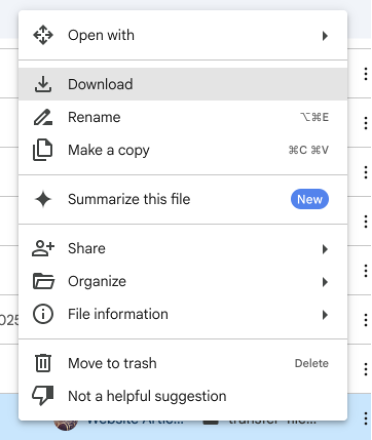
- Right-click and choose Download. If you select multiple files, Google will put the files into a zip archive.
3. Switch to your new Google account.
Open a new tab and sign in to your new account at drive.google.com.
4. Upload the files.
- Drag and drop the zipped files into your new Drive.
- Unzip the files before upload if needed and organize them however you like.
Things to keep in mind:
- This method doesn’t retain folder structure (if you zip and download multiple folders) and some types of metadata. You may need to go through many files and reorganize them before you upload them to the new account.
- If you have a lot of files, it could take a while—especially if your internet connection isn’t the fastest.
Option 2: The Automatic Method (a Third-Party Transfer Tool)
If you’d rather skip the downloading and uploading, there are lots of automated tools that can do the hard work for you. These services can transfer everything directly between accounts, often keeping things like folder structure intact.
One example is VaultMe, an online tool designed specifically for moving content between cloud accounts. Using an automated tool, you can migrate your Google Drive, Gmail, contacts, and calendars. You can choose to transfer your Drive content to a new Google account or even to OneDrive.
If the manual method is more like moving out of house in the old-fashioned way, then using an automated app is more like hiring a moving company. You tell them what to move and where to move it, and they take care of the rest—no heavy lifting, no back-and-forth, and a lot less time spent figuring things out.
The app runs the transfer in the background and notifies you when it’s done.
Why you might go this route:
- No need to monitor the process in real time.
- The tool preserves the original structure and sharing settings.
- Great for large volumes of files or if you’re on a time crunch.
Just be aware that all thir-party tools charge a fee, and you’ll need to grant them access to your accounts to do the transfer—so it’s worth checking their privacy and security policies first.
Another thing to remember is that automated tools do not transfer Google Photos, so these will need to be moved manually.
Wrapping Up
Both methods get the job done—it just depends on how hands-on you want to be. If you’ve got time and a relatively small set of files, the manual method works fine. If you’re moving everything and want it done with less effort, a third-party tool could save you some stress.
Got another method you like for moving Drive files? Let us know!