
How to Repair a Corrupt MP4 File – Free & Paid Tools
You double-click a video and get a black screen or a frozen frame or that awful “this file format is not supported” popup. Doesn’t matter which video it is. The moment a video won’t open, it hits different than a regular file deletion. There is usually no do-over with video. You shot it once. For example, you cannot recreate your son’s 1st birthday.
Here’s the part that actually helps though: a corrupted MP4 isn’t the same thing as a lost MP4. Most of the time the audio and video data is still sitting right there on the drive. What’s broken is the header or the index. It is the file’s table of contents so your player has no clue how to read it.
This post covers why MP4s corrupt in the first place, a few free methods that you can try yourself, and lastly when to just get help from desktop-based software or online video repair services.
What are the causes for MP4 video corruption?
- Recording got cut off mid-way. Battery died, someone yanked the SD card too soon, camera got knocked off. MP4 writes its index at the very end of a recording, so if that last step never finishes, the file can be unreadable even though almost all the footage is fine underneath.
- A transfer got interrupted. Cable came loose, an app crashed, a drive got ejected halfway through copying files off an SD card or phone. You end up with a partial file.
- The storage device itself is failing. A dying SD card, a flaky USB drive, an external hard drive on its way out — any of these can corrupt files during totally normal use.
- Editing or conversion software crashed. If your export or conversion tool dies partway through, the output file can come out broken.
- The PC lost power mid-write. A crash or outage while a video’s being saved or copied can leave you with a truncated file.
- Malware, or a sketchy download. Rarer, but it happens, especially with files pulled from somewhere you probably shouldn’t have downloaded from.
Worth figuring out which one applies to you, because a video file that just never finished recording needs a different fix than one that got wrecked by a failing drive.
What are the free methods to fix corrupt video?
Before waiting for anything else, try below mentioned methods that cost nothing but just minutes of yours.
1. Try to Open with a different player
Sounds too simple, but it trips people up constantly. Windows Media Player is picky about codecs in a way VLC just isn’t. Before you decide your file is corrupted, open it in VLC or something like PotPlayer instead. If VLC plays it — even with glitches — chances are your file was never actually corrupted, it just didn’t get along with whatever player you tried first.
2. Rebuild corrupt video with VLC
If VLC can open the file, even with issues, you can sometimes fix it just by having VLC convert it into a fresh MP4. Media menu, Convert/Save, add the file, choose MP4 as your output, save it as a new name. This works because building a new container and index clears up cases where only the header or metadata got damaged and the actual footage underneath was untouched.
3. FFmpeg, if you don’t mind Command Prompt
If you are comfortable in a terminal then try FFmpeg. It can rebuild a broken MP4 by remuxing the streams into a new container. This is completely free and work better.
If above methods didn’t help then try 3rd party video repair software.
Top Video repair software that can help
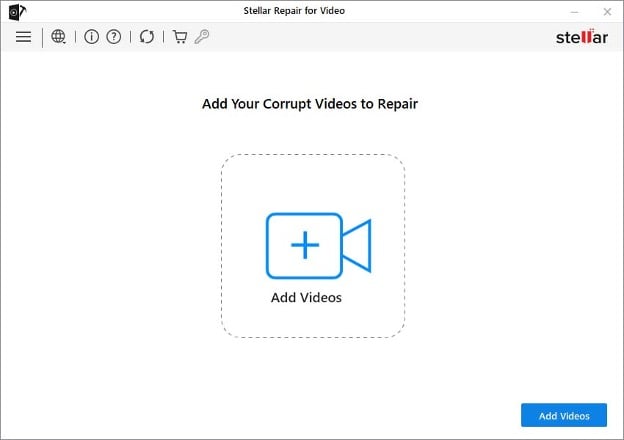
Stellar Repair for Video
Stellar Data Recovery has been offering video repair software long enough to have a decent track record. Advanced Repair mode of this software is very effective, which requires a sample video file from the same device to repair severely damaged video files. This video repair software supports a long list of file formats and works with footage from DSLRs, drones, dash cams, CCTV, and phones. The best part is you can repair multiple video in single go and see preview before saving, which is handy for confirming the fix actually worked before you commit to anything.
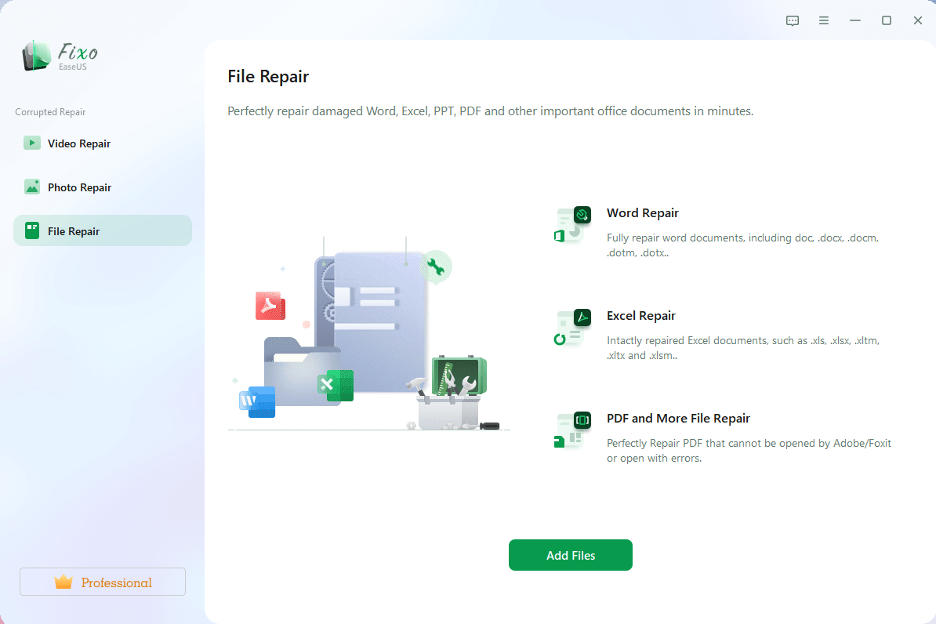
EaseUS Fixo
If you have used EaseUS data recovery software before then Fixo will feel familiar as same company, extended services into corrupt file repair. The process is about as barebones as it gets: add the file, click repair, preview video, and save repaired file. It handles footage from a lot of sources beyond a standard camera too — phones, drones, dash cams, even CCTV and DVR systems, which is handy if that’s where your corrupted clip came from.
What to do if you don’t want to download software?
If you don’t comfortable in downloading and installing software then browser-based tools are an option. Here we listed top 2 online video repair services provided by Stellar & SAS Keerby Application respectively.
Stellar Online Video Repair lets you upload a corrupted MP4 and fix a single file up to 100MB at no cost, with a preview before you commit to anything. For badly damaged files, it also supports the sample-file method the desktop version uses. It’s SSL-encrypted, runs in read-only mode, and deletes your upload automatically once the repair’s done .
Fix.Video is actually a paid service despite the name suggesting otherwise, and it specializes in footage from GoPro, DJI drones, dash cams, and the usual camera brands. It comes up a lot in recommendations for footage that survived a crash, water damage, or hardware.
Both are worth a shot before buying desktop software, especially for smaller files where the corruption looks straightforward.
What are the frequently asked questions related to corrupt videos?
Can every corrupted MP4 be fixed?
No, and nothing — free or paid — can promise 100% recovery. Files with header or index damage from an interrupted recording tend to be very fixable, since most of the actual footage is intact. Files with real data loss, like from a drive that’s failed badly and gotten overwritten, are much harder, sometimes impossible, to bring back fully.
Are free online video repair tools actually safe to use?
The established ones generally are — look for SSL encryption, a clear policy about deleting your upload after processing, and read-only handling of the file. Still, don’t upload sensitive footage to some random service you’ve never heard of, and check the file size cap first, since most free tiers max out well under what a full video usually runs.
Why does my video have picture but no sound, or sound but no picture?
Usually means one stream — audio or video — got corrupted while the other one survived, which happens a lot with interrupted recordings or bad transfers. Most repair software treats audio and video streams somewhat separately, so this kind of partial damage tends to fix more reliably than a file that refuses to open at all.
Do I need the original camera to repair a damaged video?
Not always, but it helps a lot on the worse cases. Advanced repair modes — Stellar Repair for Video and EaseUS Fixo both have one — use a healthy “sample” clip shot on the same device to figure out what the broken file’s structure is supposed to look like, which noticeably improves your odds on tougher jobs.
What’s actually different between free remux tricks and paid repair software?
Free tools like VLC or FFmpeg rebuild the container around the file without touching the audio/video streams themselves — great for header or metadata damage, but they can’t recreate data that’s genuinely missing or scrambled. Paid software uses more advanced structural and signature-based repair meant for deeper corruption, which is why it tends to succeed more often on the files that are actually badly damaged.