
PDF-to-Word.io: How to Repair Typography After Converting a PDF to Word

PDF files preserve the appearance of reports, brochures, manuals and portfolios across devices. That stability becomes a limitation when the text needs to be revised. Converting the file to Word restores editability, yet the resulting document may use substituted fonts, inconsistent spacing or fragmented text boxes.
A tool that can convert PDF to editable Word provides a practical starting point. PDF-to-Word.io processes regular and scanned PDFs in a browser, produces an editable DOCX file and attempts to retain the original content and layout. It supports files up to 50MB and requires no registration or subscription.
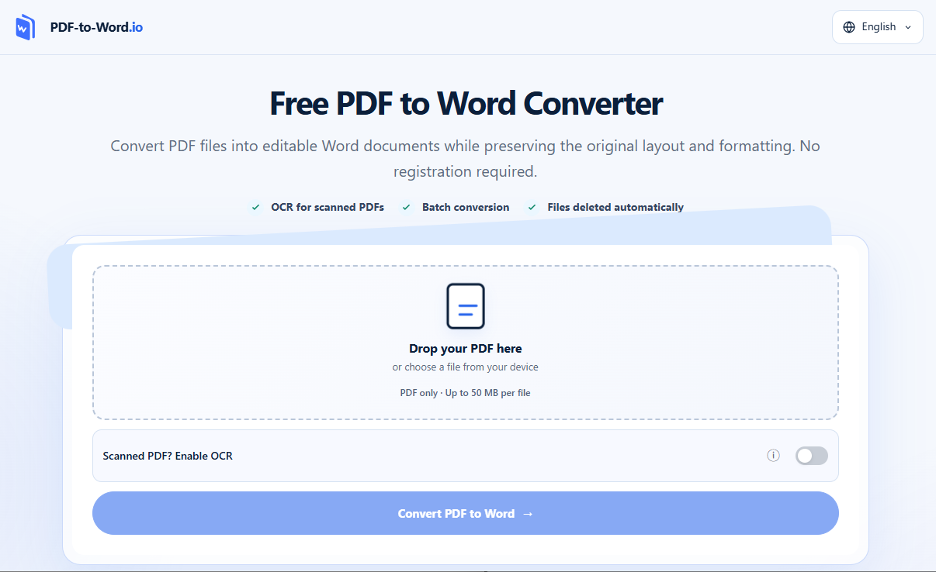
Conversion cannot recreate every typographic decision automatically. PDF and Word construct pages differently, while the original fonts may be unavailable on the user’s computer. The converted file should therefore be treated as an editable reconstruction that needs visual and structural review.
Why Typography Changes During PDF Conversion
A PDF records where individual elements appear on a page. Word builds a document around flowing paragraphs, styles, margins and page-break rules. Translating a fixed page into an editable structure requires the converter to infer relationships that may no longer be explicit.
A title may have been exported as several separate objects. A two-column article may have an unusual reading order. Closely spaced characters may be interpreted as individual text fragments. These issues become more visible when someone edits the converted document and causes surrounding text to reflow.
Fonts create another complication. A PDF may contain an embedded subset that includes only the characters used in the finished file. That subset helps display the PDF, but it may not provide an installable, editable typeface for Word. If the original font is unavailable, Word selects a substitute whose proportions can alter line endings and pagination.
Begin with a Typographic Audit
Before correcting individual paragraphs, compare the PDF and DOCX at the page level. Identify which visual decisions carry meaning and which ones are merely decorative.
Record the Document Hierarchy
List the main text roles in the source file:
- Document title
- Section and subsection headings
- Body copy
- Captions
- Pull quotes
- Footnotes
- Table headings
- Labels and callouts
For each role, note the apparent typeface category, weight, size, colour, alignment and spacing. Exact measurements are useful when available, although the relationships between styles usually matter more than matching every value precisely.
A heading should remain clearly distinct from body copy. Captions should appear secondary without becoming difficult to read. Footnotes need sufficient size and contrast. These relationships form the document’s typographic hierarchy.
Check the Reading Order
Select several paragraphs in the Word file and observe how the cursor moves through them. Text that appears visually correct may still be divided among unrelated text boxes.
This is particularly common in newsletters, research papers and brochures with multiple columns. Repair the reading order before spending time on font adjustments, because restructuring the text later may undo detailed formatting work.
Rebuild the Document with Word Styles
Direct formatting can make a converted document look acceptable on one page while creating inconsistencies elsewhere. Word Styles provide a more stable way to rebuild the design.
Replace Local Formatting with Named Styles
Create or update styles for the title, headings, body text, captions and footnotes. Define the font family, size, weight, colour, line spacing and paragraph spacing within each style.
When every heading uses the same style, a design change can be applied throughout the document. Styles also improve navigation, help generate a table of contents and preserve semantic structure for accessibility tools.
Avoid using a larger font and bold formatting as the only indication that a line is a heading. Assigning Heading 1, Heading 2 and Heading 3 styles gives the document a meaningful hierarchy beyond its appearance.
Remove Accidental Spacing
Converted documents sometimes use empty paragraphs, manual line breaks or repeated spaces to imitate the source layout. These techniques become unstable when text is edited.
Turn on formatting marks in Word and inspect the document for:
- Repeated paragraph marks
- Multiple spaces used for alignment
- Unnecessary tabs
- Manual line breaks inside paragraphs
- Unexpected section breaks
- Page breaks inserted in the middle of content
Replace these with paragraph spacing, tab stops, table cells or proper page settings where appropriate.
Choose Font Replacements Deliberately
If the original typeface is unavailable, Word may apply a fallback font automatically. The document remains readable, but its hierarchy, density and tone can change.
Match Function Before Appearance
Start by identifying the original font’s role. A narrow sans serif used for technical labels requires a different replacement from an expressive display face used only for a title.
Compare potential substitutes by:
- Character width
- x-height
- Stroke contrast
- Weight range
- Numeral design
- Italic quality
- Language coverage
- Availability across collaborators’ devices
A metrically similar font reduces changes to line breaks. A font with broader language support may be preferable when the document contains accented letters, Greek or Cyrillic text, or several writing systems.
Confirm that the proposed replacement is licensed for the intended use. A font embedded in a supplied PDF does not automatically grant permission to install, redistribute or reuse it in a new document.
Plan a Fallback Chain
Documents shared across teams may open on computers without the selected typeface. Use fonts that recipients can access, distribute licensed fonts through approved channels, or agree on an acceptable fallback.
Test the file on another device before delivery. Look for new line endings, clipped table text, shifted page breaks and missing glyphs. Exporting a review PDF from the repaired Word file can reveal how the final document will appear when its layout is fixed again.
Repair Typography in Scanned Documents
A scanned PDF contains an image of the page rather than a conventional text layer. Converting a scanned PDF to Word requires OCR to recognise the characters before the typography can be reconstructed.
Recognition quality depends on scan resolution, contrast, skew, background marks and the complexity of the page. Decorative typefaces, small captions and text placed over images are particularly difficult to interpret.
Separate Recognition Errors from Design Problems
An incorrect word is a content error. A correct word in the wrong font, column or paragraph is a layout error. Review the two separately so that visual cleanup does not hide mistakes in the text.
Compare the DOCX with the scanned page and check:
- Headings and paragraph order
- Ligatures such as fi and fl
- Similar characters such as O and 0
- Punctuation and quotation marks
- Accented and non-Latin characters
- Numbers, dates and measurements
- Footnote markers
- Table rows and columns
Handwritten annotations must be reviewed manually against the original image. Users should not assume that handwritten material has been recognised.
Watch for Text Expansion and Reflow
Even without translation, replacing a font can change the length of every line. A wider typeface may push a heading onto two lines, expand a table row or move a paragraph to the next page.
Correct the Layout in the Right Order
Begin with the document-wide settings:
- Confirm the page size, margins and column structure.
- Establish the main paragraph and heading styles.
- Select suitable font replacements.
- Repair tables, captions and lists.
- Adjust isolated spacing problems.
- Review page breaks after all text edits are complete.
Shrinking the font to force the converted file back to its original page count can damage readability. A slightly longer document is usually preferable to cramped body text, compressed line spacing or inconsistent margins.
Inspect Tables Separately
Tables often expose conversion problems first because they combine narrow spaces with rigid alignment. Check whether:
- Column headings still correspond to the correct data
- Numbers remain in the right rows
- Text wraps without being clipped
- Decimal values and units are intact
- Cell padding is consistent
- Header rows repeat appropriately across pages
If a table has been recreated as positioned text boxes, rebuilding it as a real Word table will usually make later editing more reliable.
A Final Typographic Review
Review the repaired file against the source PDF before sharing it:
- Text: Check for missing characters, incorrect punctuation and broken ligatures.
- Layout: Check spacing, table breaks, caption placement and page numbering.
- Consistency: Confirm that recurring text roles use consistent formatting.
- High-risk content: Verify numbers, dates, formulas, footnotes and handwritten notes against the source.
Frequently Asked Questions
Why does the converted Word file use different fonts?
The original font may be embedded only for displaying the PDF, absent from the user’s device or unavailable as a complete editable font. Word then uses an installed substitute. Applying a deliberately selected replacement through Word Styles produces more consistent results.
Can PDF-to-Word.io reproduce the layout exactly?
PDF-to-Word.io attempts to retain the source content and layout, but exact reproduction should not be assumed. Complex typography, unusual fonts, multiple columns, tables and scanned pages may require manual correction.
Should every text element use a Word Style?
Recurring elements such as headings, body paragraphs, captions and footnotes benefit from styles. Unique decorative elements may still need local formatting, although these exceptions should be kept limited.
What must be checked manually after conversion?
Review numbers, dates, amounts, tables, formulas, special symbols, footnotes, headers and footers, blurred scan areas and handwritten notes against the original PDF. Also check font licensing and character coverage before distributing the edited document.
Restore the System Behind the Page
A successful PDF-to-Word conversion produces editable content. A successful typographic repair restores the system that made the original document readable: hierarchy, rhythm, spacing and predictable font behaviour.
PDF-to-Word.io can provide the initial DOCX structure. From there, careful font selection, properly configured Word Styles and side-by-side review turn the converted file into a document that can be edited without gradually losing its visual logic.