
Designing Around the Image: How Photo Editor AI Can Help Typography Stand Out Without Losing Visual Balance
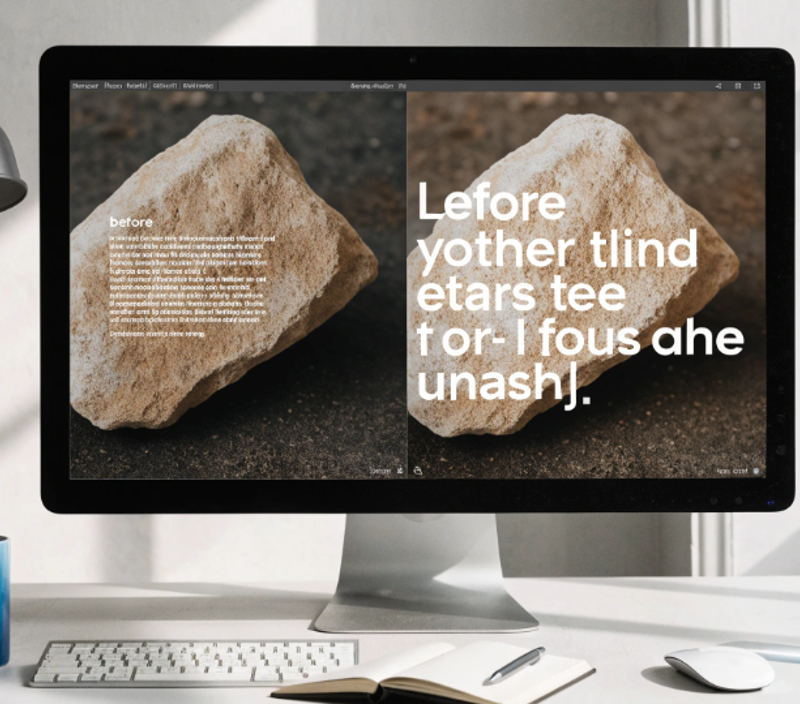
Putting text on a photo sounds easy until you try it. The headline disappears into a busy background. The subtitle collides with someone’s face. The beautiful image you chose now looks cluttered, and the words you wrote are hard to read.
This is one of the most common problems in social graphics, banners, posters, and blog covers. The solution is usually not a bigger font or a heavier shadow. It is a better relationship between the text and the image.
AI photo editing tools can make that relationship easier to build. This guide explains the principles behind readable, balanced typography on photos and shows how an AI editor can help you apply them.
Why Text on Photos Goes Wrong
Photos are full of information. Light and dark areas, textures, colors, and shapes all compete for attention. Text is one more element in that mix, and it often loses.
The usual problems are easy to spot:
Low contrast. Light text sits on a pale area, or dark text sits on a shadowed one, and the letters blur into the background.
Busy backgrounds. Detailed textures such as foliage, crowds, or patterned fabric break up the shapes of letters.
Awkward placement. Text covers the subject’s face, a key product detail, or the natural focal point of the image.
Unbalanced layout. All the weight sits on one side, leaving the composition feeling lopsided.
Fixing these problems starts with treating the image and the text as one design, not two separate pieces stacked together.
Start With the Image, Not the Font
Many people choose a font first and then hunt for a place to put it. A better order is to study the photo and find where text can naturally live.
Look for calm areas. Sky, a plain wall, a soft blurred background, or an empty stretch of table are all good candidates. These areas give letters room to breathe.
Then look at the subject. Where does the eye go first? Your text should support that focal point, not fight it. If the subject is on the left, the text often works best on the right, and the other way around.
If the photo has no calm area, that is a sign the image itself needs adjusting before any text goes on.
How an AI Photo Editor Helps
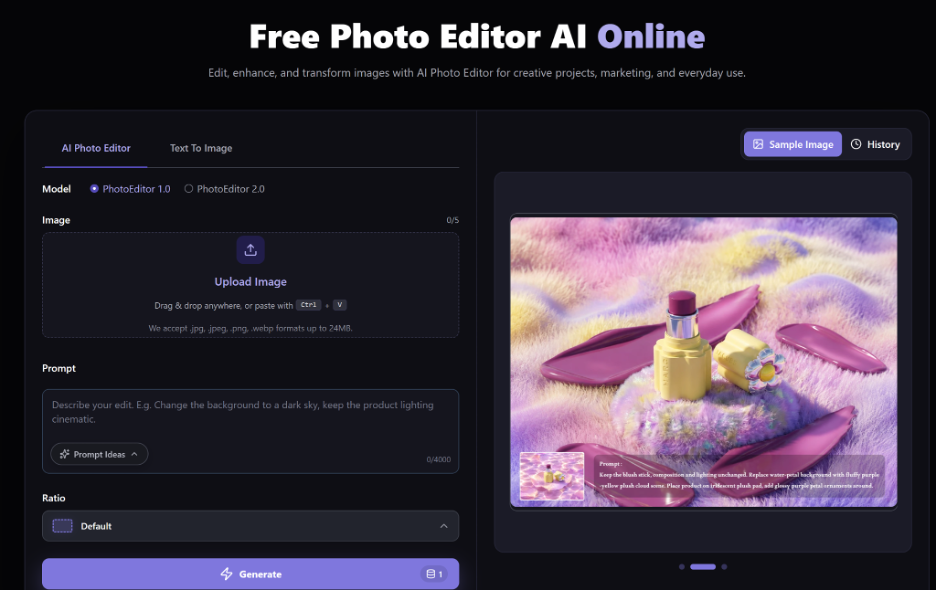
A Free Photo Editor AI can change the image so that it works better with typography. Here are the most useful ways.
Creating Space for Text
When a photo is cropped tightly, there is no room for words. Some AI editors can extend the canvas and fill the new area to match the original scene, giving you extra sky, wall, or background where text can sit.
This is especially helpful when you need to turn a square photo into a wide banner or a vertical story format.
Removing Distractions
A stray sign, a bright object at the edge, or a cluttered corner can pull attention away from your headline. AI object removal can clean these areas so the text has a quieter backdrop.
Be careful not to overdo it. Remove only what distracts, and keep the image looking natural.
Adjusting Light and Contrast
Sometimes the right spot for text is simply too bright or too dark. Adjusting brightness, contrast, or exposure in that area can make letters far more readable.
A common technique is to slightly darken or lighten the region behind the text, so the effect feels natural and not like a heavy box. Subtle changes work better than dramatic ones.
Softening the Background
Blurring the background gently makes it recede, which lets text and the main subject stand out. Many AI tools can detect the subject and blur only the surroundings.
This works well for posters and social posts where a crisp subject and clear headline need to share the frame.
Matching Colors
AI editors can also help adjust color tones so that the image and text feel related. If your photo has warm tones, a warm accent in the text can make the whole design feel intentional.
Core Typography Principles for Photos
The tool is only part of the answer. These design basics matter just as much.
Prioritize Contrast
Readability depends on the difference between letter color and background color. White text on a dark area and dark text on a light area are the safest choices. If you cannot get enough contrast from the photo alone, add a subtle overlay, shadow, or soft gradient behind the text.
A quick check is to squint at the design or shrink it to thumbnail size. If the text still reads, the contrast is good.
Limit Your Fonts
Use one or two typefaces at most. A common pairing is a bold headline font with a simple, clean font for supporting text. Too many styles make the design feel noisy and compete with the photo.
Choose fonts that match the mood of the image. A soft, rounded font suits a cozy lifestyle photo, while a strong sans serif suits a modern product shot.
Build a Clear Hierarchy
Readers should know what to look at first, second, and third. Use size, weight, and spacing to rank your text. The headline should be the largest element, supporting text smaller, and details like dates or URLs smallest.
Do not try to make everything important. When every line shouts, nothing stands out.
Keep Text Short
Photos work best with brief text. A headline of a few words does more than a paragraph. If you need to say more, put the details in the caption, the post text, or the page below the image.
Respect Margins and Safe Zones
Keep text away from the edges so it does not get cropped by different screens and platforms. Social apps often place buttons, profile names, or captions over parts of the image, so leave breathing room, especially at the top and bottom.
Use Alignment and Spacing Deliberately
Align text to something in the image, such as a horizon line, an edge of the subject, or a margin. Consistent spacing between lines keeps the layout tidy. Avoid cramming letters or lines together, and avoid centering everything by default if the image has a clear directional flow.
Keeping Visual Balance
Balance means the design feels stable, with no part overwhelmed by another. Here are practical ways to achieve it.
Counterweight the subject. If a large subject sits on one side, place text on the other to even out the composition.
Use negative space. Empty areas are not wasted. They give the eye a place to rest and make both the subject and the text easier to notice.
Keep the focal point clear. Never place text over faces or the most important detail of the product.
Repeat shapes and angles. If the photo has a strong diagonal, a slightly angled text block can echo it. If it is calm and horizontal, keep text level.
Mistakes to Avoid
Heavy drop shadows and thick outlines can look dated and distract from the image. Over processing a photo to fit text can make it look artificial. Using several bright colors for text often clashes with the photo’s natural palette. Placing text across a busy area and hoping a bold font will fix it rarely works.
If you find yourself fighting the image, change the image, crop differently, or choose another photo.
Test Before You Publish
Good design holds up in real conditions. Before publishing, check your work on a phone screen, since most people will see it there. View it at small size to confirm the headline is still readable. Test it in both light and dark modes if the platform supports them, and ask someone else to read it quickly and tell you what they noticed first.
If a reader cannot understand the message in a couple of seconds, simplify the layout.
Rights and Responsible Use
Use only photos you own or have permission to edit. Check the terms of any tool you use, especially if the result will appear in commercial work. Be careful with fonts too, since some require a license for business use. If you heavily alter an image, consider whether labeling is required or wise in your context.
A Quick Workflow You Can Repeat
- Choose a photo with a clear subject and some calm space.
- Use the AI editor to extend, clean, or adjust the area where text will go.
- Place your headline in the calm area, with strong contrast.
- Add supporting text in a smaller size, keeping margins generous.
- Check balance, then test on a phone and at thumbnail size.
- Export in the right dimensions for each platform.
Final Thoughts
Strong typography on a photo comes from respecting both elements. The image needs room and clarity, and the text needs contrast and hierarchy. When one is forced to dominate, the design usually suffers.
A Free Photo Editor AI makes this easier by creating space, cleaning distractions, and adjusting light so words can sit comfortably in the frame. But the real skill is in the decisions: where the text goes, how much to say, and how to keep the whole composition in balance.
Try it on one image this week. Make room for your headline, check the contrast, and see how a small adjustment to the photo can make the words stand out without costing the picture anything.