
How to Move Everything from Old to New iPhone in 4 Steps
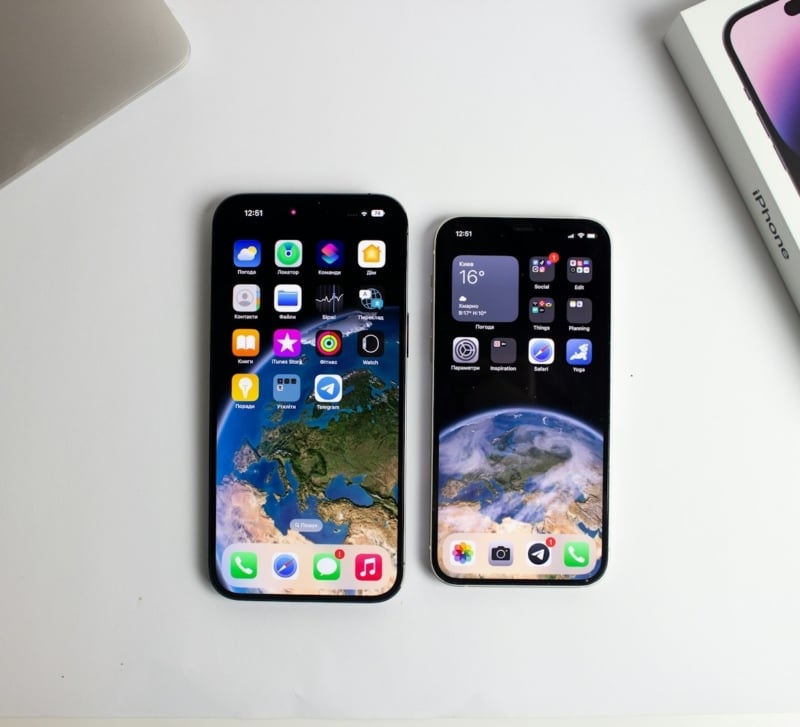
Your new iPhone is ready to go, but transferring all your data to the new iPhone might turn out to be more difficult than expected. Your old iPhone holds years of photos, contacts, chat history, and various apps data, the new one is still empty.
Using Quick Start procedure is generally recommended and does work-until it gets stuck on “Estimating time remaining”, or until one of the devices locks or gets out of proximity range. Another solution is to create an icloud backup which requires extra storage space and fast upload connection. The third solution is to use a Windows PC as a bridge and transfer the data using special software. Having reliable iPhone data software ready is very useful in this case.
You won’t be able to move your files on their own. You’ll have to transfer your files in a way that allows you to be sure where and how the process goes. Before we get to the actual test, let’s take a look at why the default solutions can lead to problems.
Why Migrating to a New iPhone Goes Wrong?
Almost all migration issues arise because of tools meant for backups but not for migration:
- Quick Start is convenient but fragile. Both devices have to remain close-by, unlocked, and charged. One glitch – and you start from scratch.
- An iCloud backup is more of a quota issue than anything else. The free 5GB is easy to fill up, and backing up your data including photos and videos takes hours before the transfer even starts.
- Restore is an all-or-nothing process. in other words, iTunes and Finder replace everything on the new device. There’s no choice whether to migrate contacts and messages first and then choose media files.
- Third-party apps and app data migration is unpredictable. For example, WhatsApp conversations,voice memos, and some third-party files may require a separate migration process.
- lt’s impossible to predict what you will end up with. Upon restoring, you’ll only receive a message that says “Done”. However, no one will let you know about photos and conversations actually restored.
Realible and Fast iPhone to iPhone Transfer Software – FoneTool
In case you wish to transfer your data from your old iPhone to the new one without depending upon the iCloud services and also without taking an hour to transfer old iPhone to new iPhone, you should have a tool for that purpose. FoneTool will use your Windows computer as an intermediate platform to connect both your iPhones at once while transferring your data with just a single click.
- Single-step iPhone-to-iPhone file transfer: Photos, contacts, call logs, SMS, notes, calendars, Safari information, application information, and system settings will be transferred together
- Offline transfer: The files will be transferred via USB connection without using an internet or Wi-Fi connection.
- Preview files: You will be able to preview the file categories before transferring to avoid transferring duplicate or unnecessary files.
- Fast USB transfer: Direct transfer via cable connection can be used to transfer huge photo and video libraries in just a few minutes
- Source iPhone backup: The source iPhone will be backed up prior to the file transfer process,
If a fast and hassle-free transfer of data from your old phone to your new one is your primary concern, then this process will serve you well.
4 Steps to Transfer Data to a New iPhone with FoneTool
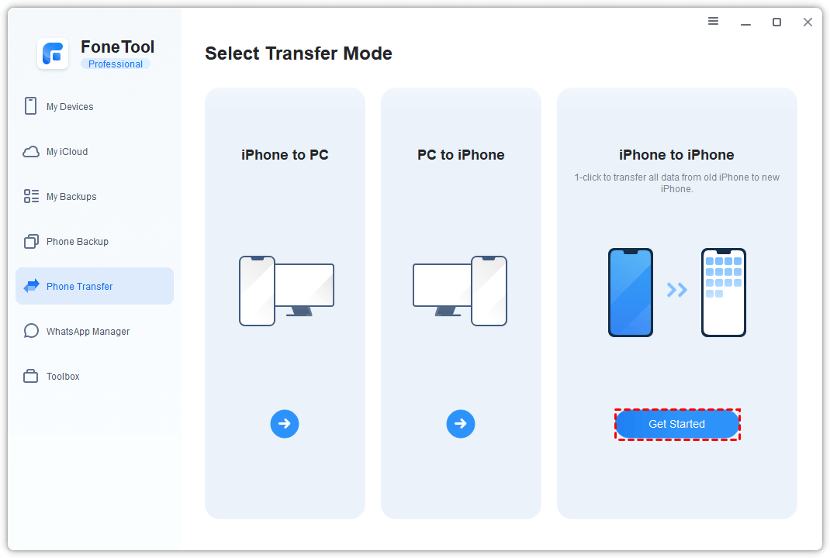
Step 1. Launch FoneTool on your Windows PC and connect both iPhones to the computer with USB cables. On the main screen, click “Phone Transfer”, hover over the “iPhone to iPhone” icon, and click “Get Started“.
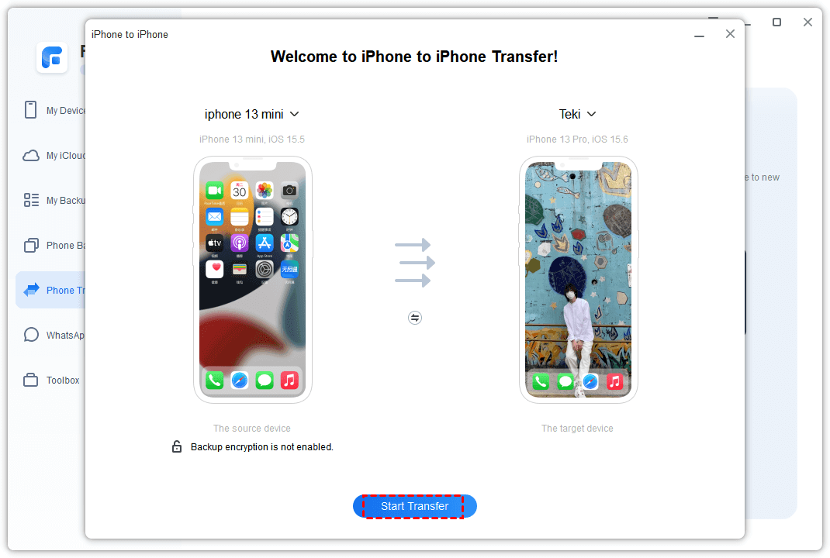
Step 2. FoneTool will list the source and target devices. Confirm that the old iPhone is selected as the source and the new iPhone as the target. If you want to encrypt the backup, enable backup encryption at this step.
Step 3. Click “Start Transfer“. The software will transfer photos, contacts, call history, text messages, notes, calendars, Safari history and bookmarks, app data files, preferences, and system settings to the new iPhone.
Step 4. When the transfer finishes, the target device will restart automatically. After the restart, check photos, contacts, and messages on the new iPhone to confirm everything arrived. The old phone can then be reset or passed on.
Final Thoughts
A new iPhone should feel like an upgrade, not a data gamble. Whether you’re handing the old phone down to a family member, trading it in, or keeping it as a backup, the safer way to migrate is to see and verify the data before the old device is reset. FoneTool’s iPhone-to-iPhone transfer does exactly that: connect both phones, choose Phone Transfer, confirm the source and target, and let the software move data over USB. In our testing, it proved to be a reliable top pick for iPhone data trasfer – no iCloud storage limits, no stalled Quick Start, and no guessing about what actually made it across.