
Combining 3D Graphics and Video Editing to Create Attention-Grabbing Movies
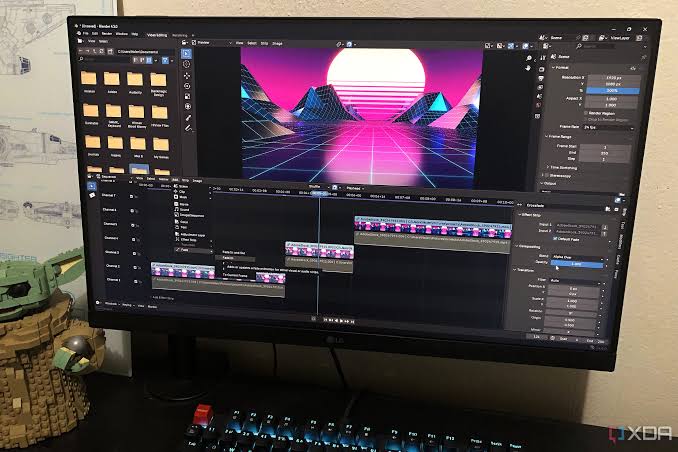
To make eye-catching movies, we have to go beyond simple transitions and generic filters for the stock footage. Whether you’re shooting high-end commercial specs, indie game trailers, or movie-worthy YouTube essays, the most interesting movies right now always combine 3D graphics with live-action footage.
If you’ve ever dove headfirst from a flat video editor into a full 3D viewport, you know that the learning curve isn’t exactly a hill to climb – it’s more like a brick wall. Mastering this hybrid workflow can open up a whole new world of creative possibilities.
To get you going without burning through cash on premium templates, you need to look for assets for a free download GFX content strategy for enhancing your base timelines.
With a platform like GFX-hub.co, you can get your hands on advanced 3D tracking assets, overlays, and plug-ins that can fill in the space between flat video and deep space.
Why Flat 3D Video Editing Is No Longer Enough
The audience is hip to visual depth. A few years back, a pop-up with clean font and a nice drop shadow color was called professional. These days, people demand typography to be interacting with the environment; shadows emitted by text to be falling over other real objects; that camera movements are perfectly coordinated across live-action and digital assets.
If you confine yourself to using only one non-linear video editing software, stretch aspects, change their rotation or opacity, you’re confined to a flat plane. You can’t really change the light source on a product you want to animate, put text in arced letters around a real object or change your focal depth.
If you embed a 3D program into your production process, you will no longer be limited to these constraints. Instead of projecting text or graphics onto a video, you will project the video onto the 3D objects.
Your Tools of Choice: Blender and Your Editor
Most users want an industry-standard simple video editor and a solid 3D solution.
The 3D Engine (Blender): It’s 100% free, open source, and at par or better than commercial equivalents for most general indie workflows. From modeling, to texturing, to lighting, to animation, to camera tracking for VFX needs…
The Video Editor (Premiere Pro, DaVinci Resolve or Final Cut): Blender has a Video Sequence Editor, but that’s not what’s needed for quick pace editing, savvy multi-track audio design, hardcore colour grading and dealing with raw camera codecs.
The secret lies in synchronizing the two spaces. You don’t create everything in 3D, you track your real camera motion, export it, get your 3D models into that space, render it and composite it back over your original edit.
The Reel Mix
To avoid swamping your computer’s render queue and file folder structure, here’s the right sequence of events to follow.
1.Lock the Edit First :Prerequisite.
Never produce high-end “3D” graphics on an evolving timeline. Work your raw footage, decide the precise clips you want, and trim down to frame count.
2.Solve the Camera Track :Blender Viewport.
Import the clip you want to composite in to an empty Blender VFX scene. Add tracking markers to high-contrast points that are visible throughout the shot. Let the solver figure out the focal length and motion path of your real camera.
3.Match Environment and Lighting :3D Setup.
Add rough geometry to simulate the floors or walls behind your model. Quickly match the surrounding lighting by adding an HDRI (High Dynamic Range Image) taken in a similar environment to match light directions and reflections to your source material.
4.Render with Transparency :Export Settings.
Render your objects with an image sequence format such as OpenEXR or transparent PNGs so you can start compositing. Don’t forget to tick the “Transparent” box under the Film settings so your 3D model doesn’t render with a black background.
5.Composite and Grade :Video Timeline.
Drop in your transparent 3D render sequence in front of your original footage through your video editor. Add a matching grade, copy the digital lens grain onto your finished product and luscious motion blur to fully lock it all together.
Mastering the Illusion: Lighting and Camera Tracking
The only two things that instantly destroy a mixed-media edit are bad lighting orientation and a floating/sliding object. If it looks like your 3D thing just hangs/walks on a table, the brain instantly catches on to the fake thing.
The Camera Solve Error
If you are tracking a camera path with Blender, you’ll notice a “solve error” metric. That number tells you how close the software’s math aligns with your real lens.
If the error is over 1.0 pixel, you’ll see your objects drift and wiggle.
If you’re under 0.5 pixels, you’ll see your 3D objects nailed to the floor.
Catching the Light
Even an object perfectly tracked will look fake if the shadows don’t work. If the real clip was shot under a diffuse, cloudy daylight, your 3D objects should not have hard, sharp-edged shadows cast from a tiny point source. Use soft, big area lights in your 3D viewport to emulate the same ambient real-world lighting environment.
Keeping it Smooth: Use Proxy Workflows
Doing production across a video timeline AND a 3D scene requires insane amounts of hardware power. If your playback drops to 4 FPS, your creative flow dies.
By using proxies almost exclusively, keeping your machine as happy as possible, you rely on low-resolution copies of your heavy camera footage. Create these lightweight files and use them to edit and lay out your 3D tracks. When the animation is perfect, and you’re ready for final render, simply flip the toggle back to your high-resolution original files, and save yourself hours of lag time and easily choking up graphics card.