
How Students Can Claim Microsoft Office Download Without Paying

Education is now a digital-first century and tools such as Microsoft Word and Excel are needed. Learners all over the world have been using these applications to do assignments, reports and group work. Microsoft provides free access to its productivity suite to eligible students and educators to help with learning. This project enables students to access high-quality tools without subscribing. Many still seek Microsoft Office free download options, unaware of Microsoft’s official education program. Meanwhile, other options such as WPS Office provide similar functionality free of charge, which will assist users to remain productive even after graduation.
Understanding Microsoft’s Education Program
The education program by Microsoft offers free access to Office 365 Education. It is a tested project that can assist learners and educators utilize professional-level tools without committing legal offenses or breaching licenses.
Office 365 Education has Word, Excel, PowerPoint, OneNote, and Microsoft Teams. These applications facilitate project management, collaboration in real-time and note taking. OneDrive cloud integration maintains an automatic save and synching of work.
In order to be eligible, students have to belong to a recognized academic institution. They should also possess a valid school or college email. The same offer is applicable to faculty members in the case of teaching-related activities. This is one of the most valid opportunities to access Microsoft Office free of charge.
Confirming School Eligibility
Make sure that your school is enrolled in the Education Program at Microsoft before registering. On the official education portal of Microsoft, fill in your institutional email address. In case your institution is part of it, then the site will verify eligibility immediately.
The primary requirement is a valid school domain email or .edu. Microsoft checks on enrollment status by it. Upon confirmation, an activation link will be sent to your inbox.
Follow these simple steps:
- Visit Office 365 Education.
- Add your school email.
- Look in your inbox to get the confirmation email.
- Click the verification link.
- Sign in or create a Microsoft account.
Your license will be activated automatically once it is complete. This check ensures that you get valid and safe entry rather than using unsafe downloads.
Registering and Claiming Your Free License
Register your Office 365 Education account after eligibility. Go to Microsoft Education sign-up page and use your confirmed school email address. Respond to prompts to complete registration.
Microsoft will take you through the process and connect your learning email with a Microsoft account. Then log in to Office.com using your credentials. Your student status will automatically be identified and you will be allowed full access.
The activation process is fast and can be done in minutes. After this is completed, you are able to use online or install Word, Excel, PowerPoint and other applications.
Installing Office 365 Education
After doing this, go to Office.com and sign in. On the home page, click on install office. Select Office 365 apps and download it. The installer is compatible with Windows, Macos, and Chromebook.
Windows users should use the installer and go through the setup guide on the screen. Under macOS, drag Office folder to Applications. The web-based version is available to the Chrome users at Office.com.
In case of any problems with the login or activation, check your account. Make sure that the identical email is used when installing. In case of issues, delete browser cookies or call on Microsoft support. With the right configuration, all applications can be used without any problems, and they are available under the Education plan.
Using Office Tools Online Without Installation
Office applications can be used by students in the browser without any installation. Go to Office.com and log in using your verified student account. Word, Excel and PowerPoint can be used as web applications here.
OneDrive is a cloud storage service provided by Microsoft, where work is stored. You are able to edit, share and co-author documents in real time. The files can be accessed on every internet-enabled device.
It is the perfect version of the browser to make fast edits or work together. Nevertheless, it has certain limitations. Access is limited offline and some of the advanced features are lacking as with desktop applications. Still, it serves as an effective online document editor for students managing assignments on multiple devices.
Managing Access After Graduation
As you get closer to graduation, the school email can run out. As soon as that occurs, the Office 365 Education license will be automatically deactivated by Microsoft. You should save your work before you lose it.
Export your data out of OneDrive before the expiration date. Download files or transfer them to a personal Microsoft account. This is a precaution that guarantees that you do not lose important coursework or projects.
Once you lose access, you have the option of subscribing to Microsoft 365 or moving to free options. WPS Office proves to be an economical option to graduates who are cost-sensitive. It keeps providing access to productivity tools free of subscription fees.
WPS Office — A Lifelong Free Solution for Students
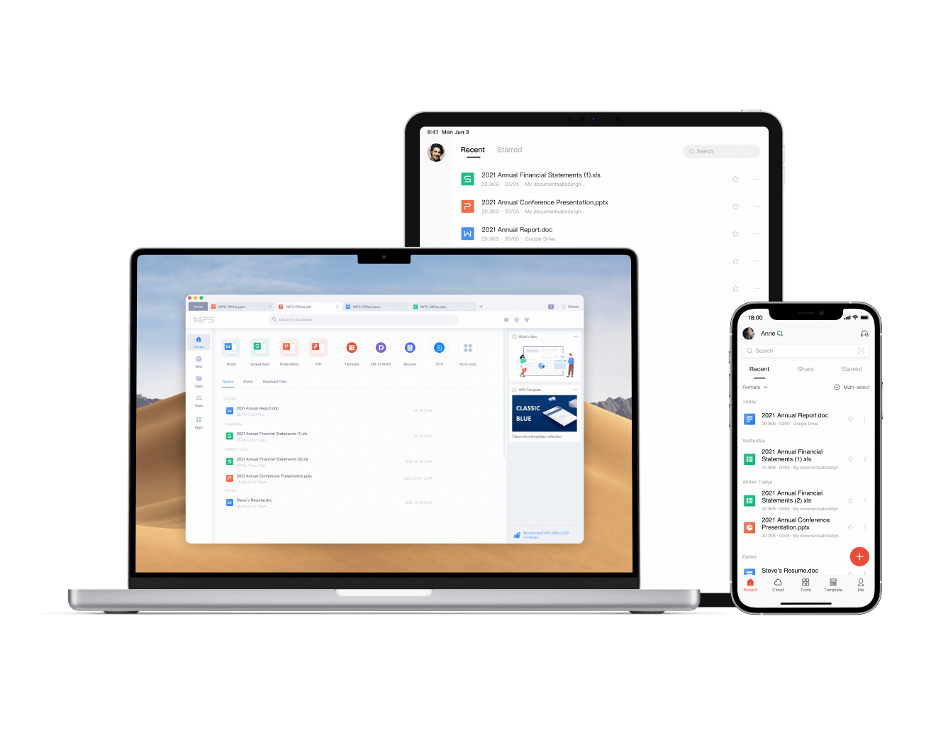
WPS office is a free all-in-one package resembling Microsoft Office in design and functionality. It was developed by Kingsoft and has been used by millions of users around the world since 1988. To students, WPS provides Word, Excel, PowerPoint and PDF tools; all of which are free to download.
Installation To install it, go to the WPS Office site and choose the version that works with your device. It is secure and quick to install. After installation, you are able to create, edit and share files in full compatibility across Microsoft formats.
WPS Office is not merely a free substitute, it is a lifetime productivity companion. It contains hundreds of academic templates of reports, presentations and resumes. WPS Cloud also allows students to duplicate files across devices. This makes it possible to access notes and assignments on phones, tablets and laptops.
The other major strength is PDF support. WPS is capable of editing, merging, and compressing PDFs, unlike the limited versions of Office. Its design is more or less similar to that of Microsoft, making it less cumbersome to learn it.
Its AI-based capabilities such as smart proofreading and fast translations can also be useful to students. The platform is familiar, reliable, and affordable, which makes it a perfect choice in case of the graduation.
WPS Office ensures that it is compatible with Microsoft.docx, xlsx, and pptx. It implies that your past school project can still be edited and shown even after being no longer accessible to Office 365 Education to the student. WPS is more sustainable than paid subscriptions in a long-term use.
Conclusion
The Education Program provides students and educators with a valid avenue to free access to Office by Microsoft. This confirmed project enables learning without breaking software policies. Students can get the advantage of premium features without paying by verifying their eligibility and registering using a valid institutional email.
That access can however cease after graduation. WPS Office, in that case, becomes the perfect life-long partner. It is completely compatible with Microsoft formats, it is free and is full of study and professional development tools.
Students are allowed to claim Microsoft office through legal means, remain active with offers verified and later move to WPS Office to continue with free access. On or off campus, productivity can be attained without paying a dime.