
How to Design a Translation-Ready Word Template for Multiple Languages
A Word template may look polished in its original language and become difficult to manage as soon as translation begins. Headings wrap onto extra lines, tables expand beyond the page, and carefully chosen fonts are replaced because they do not contain the required characters.
Many of these problems begin in the source document. Formatting created with repeated spaces, manual line breaks and individually styled paragraphs gives translators and document tools very little structure to work with.
A translation-ready Word template anticipates changes in text length, writing direction and character coverage. It gives international teams a stronger foundation for producing reports, proposals, manuals and course materials in multiple languages.
Start With the Languages the Document Will Support
The target languages influence almost every typographic decision.
A template intended only for English and French has different requirements from one that must support Arabic, Japanese and Hindi. Before choosing fonts or designing page layouts, list the languages and writing systems expected during the life of the document.
Consider:
- Which scripts must the fonts support?
- Does any language read from right to left?
- Are translated sentences likely to be longer?
- Will several languages appear in the same document?
- Does the document contain technical terms that remain in English?
- Will regional teams edit the translated files?
Answering these questions early helps designers avoid expensive layout repairs later.
Choose Fonts With Suitable Character Coverage
A typeface can only display the characters included in its font files. A font designed primarily for basic Latin text may lack Cyrillic letters, Vietnamese diacritics, Arabic glyphs or East Asian characters.
When a character is missing, Word usually applies a fallback font. The replacement may have a different weight, width or vertical alignment. A translated sentence can then appear visually inconsistent even when every word is correct.
For multilingual templates, check whether the selected typeface supports the required scripts. Test more than the regular style. Bold, italic and semibold files may offer different character coverage.
When one font family cannot support every language, define approved alternatives. A template could use one family for Latin and Cyrillic text, another for Arabic and a third for Chinese or Japanese. The selected families should have compatible proportions and visual weight.
Test Real Characters and Punctuation
A font specimen showing the alphabet provides limited information about multilingual performance. Test the characters that will appear in actual documents.
Useful tests include:
- Accented uppercase and lowercase letters
- Currency symbols
- Quotation marks
- Dashes and ellipses
- Mathematical symbols
- Arabic shaping
- Chinese and Japanese punctuation
- Mixed-script product names
- Bold and italic text
- Numbers used beside non-Latin characters
Pay attention to line height, spacing and punctuation placement. Characters may technically display while still looking crowded or misaligned.
Build the Document With Word Styles
Word styles give the document a consistent structure. They also make global formatting changes much easier after translation.
Create named styles for:
- Document title
- Subtitle
- Heading levels
- Body text
- Bulleted lists
- Numbered lists
- Captions
- Quotes
- Table text
- Headers and footers
Apply these styles throughout the template instead of formatting each paragraph manually.
If the translated body text needs a different font or slightly larger line spacing, changing the Body style can update the entire document. Without styles, every affected paragraph may need to be corrected separately.
Styles also help preserve hierarchy. A translator or reviewer can identify headings and captions from their assigned roles rather than relying only on appearance.
Avoid Using Spaces and Tabs for Layout
Repeated spaces, tabs and empty paragraphs are fragile layout tools. Their appearance depends on the font, character width and software environment.
Translation makes this fragility more visible. A longer heading can push manually aligned text into the wrong position. A font substitution can alter the width of every space. Empty paragraphs may create unexpected page breaks.
Use the appropriate Word features instead:
- Tables for aligned information
- Paragraph spacing for vertical gaps
- Indents for text positioning
- Page breaks for new pages
- Section breaks for layout changes
- Tab stops for controlled alignment
- Columns for multi-column content
These features give the document a more stable structure across languages.
Leave Room for Text Expansion
Translations rarely occupy exactly the same amount of space as the source text. A short heading in one language may require several additional words in another.
Rigid text boxes and narrow table cells leave little room for this variation. The problem is especially noticeable in executive summaries, forms, product sheets and documents with dense page designs.
A translation-ready Word template should:
- Avoid fixed-height text boxes
- Allow table rows to expand
- Keep headings away from nearby images
- Leave additional space around short labels
- Avoid forcing important text onto one line
- Use page layouts that can absorb small changes
- Test pages with deliberately lengthened sample text
A little unused space in the original template can prevent extensive redesign in later language versions.
Simplify Tables
Tables are often the first part of a translated document to break. Narrow columns, merged cells and long labels create limited room for text expansion.
Keep tables as simple as the content allows. Use clear column headings, avoid unnecessary merged cells and allow rows to adjust automatically. If a table contains large amounts of explanatory text, consider moving that text into paragraphs below it.
Check whether the table still works when:
- Column headings become longer
- Numbers use different separators
- Dates follow another regional format
- Text changes direction
- A fallback font occupies more space
- Several lines appear in one cell
The table should remain understandable even if the translated version spans an additional page.
Design Headers and Footers Carefully
Headers and footers often contain document titles, department names, confidentiality labels, dates and page numbers. Their limited space makes them vulnerable to overflow.
Use short source wording where possible and avoid placing translated text inside narrow shapes. Confirm that page numbers remain separate from the translated content.
Section-specific headers also need attention. Make sure they use styles or linked fields rather than manually typed text that may be overlooked during translation.
Keep Images and Captions Connected
Images may include captions, labels or surrounding explanatory text. In a poorly structured document, translation can separate these elements.
Use Word’s caption tools or a consistent caption style. Keep the image and its caption together where possible, and avoid positioning captions with floating text boxes unless the layout genuinely requires them.
If text appears inside an image, record it separately for translation. Embedded image text will not behave like an ordinary DOCX paragraph and may require editing in the source graphic.
Alt text should also be reviewed when the document is translated for accessibility.
Prepare the Source DOCX
Before sending the document for translation, perform a short preflight check.
Confirm that:
- The source language is final
- Track Changes has been resolved
- Comments have been removed or clearly assigned
- Heading styles are applied consistently
- Lists use Word’s numbering tools
- Tables remain editable
- Images and captions are paired correctly
- Headers and footers are current
- Fonts support the source characters
- The filename clearly identifies the approved version
Starting from a clean source file prevents outdated comments and accidental revisions from appearing in the translated document.
Translate the Complete Document
Copying paragraphs into a general translation interface removes them from their layout and structure. The translated text must then be pasted back into the correct headings, tables, lists and captions.
A dedicated Word document translator [1] can process the DOCX file as a complete document. Doc-Translator.org allows users to upload one DOCX file, automatically detect or manually choose the source language, and select a target from more than 100 languages.
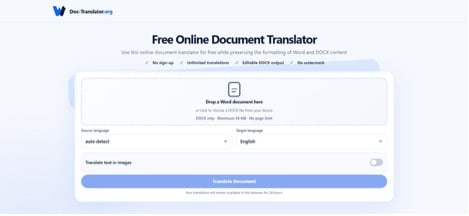
The service provides an editable DOCX file after processing. It is designed to retain common document elements, including paragraphs, tables, images, fonts, basic character styles, headers, footers, page dimensions, margins, lists and numbering.
Doc-Translator.org currently supports DOCX files up to 30MB, with no page limit. It can be used without registration and does not impose daily or monthly translation quotas.
Review the Translated File
Format preservation reduces reconstruction work, although every translated document still requires review. Different languages can create layout changes even when the document structure remains intact.
After using a tool to translate Word document while preserving formatting, check:
- Whether all paragraphs were translated
- Whether headings maintain the correct hierarchy
- Whether tables fit within the page
- Whether lists and numbering remain in order
- Whether the correct fonts display each script
- Whether bold, italics and other character styles remain appropriate
- Whether captions stay with the correct images
- Whether headers and footers remain readable
- Whether page and section breaks still make sense
- Whether margins and page dimensions are unchanged
A native speaker should review meaning, tone and terminology. A document editor or designer can then check typography and layout.
Save the Template for Future Languages
Corrections discovered during the first translation should improve the master template.
If one table repeatedly causes overflow, widen it in the source. If a font lacks necessary characters, update the approved fallback list. If headings become too long, adjust spacing or simplify the style.
Maintain a short template guide covering:
- Approved fonts for each script
- Heading and paragraph styles
- Table rules
- Caption formatting
- Filename conventions
- Review responsibilities
- Known layout limitations
This turns each translated document into useful feedback for the next one.
Frequently Asked Questions
Should custom fonts be embedded in a DOCX template?
Embedding may help recipients display a font, depending on the font license and Word settings. Character coverage still needs to be checked for every target language. Embedding a font does not add glyphs that the font does not contain.
Can one font support every language?
Some font families cover many scripts, but coverage and design quality vary. A planned set of compatible fonts may produce better results than relying on one family for every writing system.
Does Doc-Translator.org support both DOC and DOCX?
The platform currently supports DOCX files. Older DOC files should be opened and saved as DOCX before use.
Will the translated document look exactly like the source?
The platform aims to preserve common formatting and structure. Differences in text length, font coverage and writing direction can still affect pagination and spacing, so the downloaded file should be reviewed.
Can translated DOCX files be edited?
Yes. The output is provided as an editable DOCX file, allowing users to revise the translation and correct formatting where necessary.
Better Templates Produce More Manageable Translations
A multilingual Word document begins with the source template. Font coverage, styles, flexible spacing and structured tables determine how well the document responds when the language changes.
Preparing these elements before translation reduces avoidable formatting problems and gives translators a clearer document to work with. A complete-document translation tool can then preserve much of the original structure while producing an editable file for review.
The final step remains essential: open the translated DOCX, inspect it with real target-language text and correct any linguistic or typographic issues before distribution.