
Image to Video AI – Transforming Photos into Stunning Videos
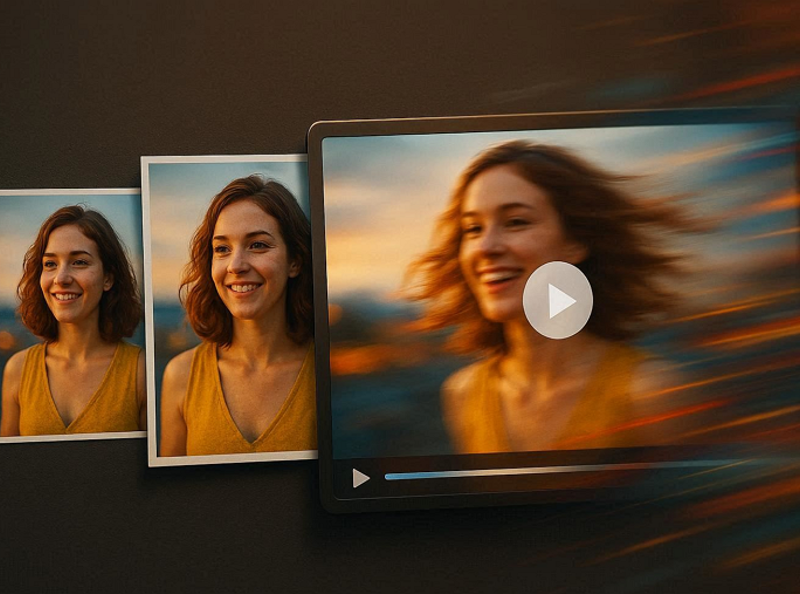
A travel blogger scrolls through a gallery of beautiful photos captured during a recent trip. The images look stunning, yet something feels missing when sharing them on social media. Static pictures often struggle to capture the emotion and movement of real moments. This is where image-to-video AI becomes incredibly useful.
By turning simple photos into dynamic videos with motion effects, transitions, and music, these tools help bring memories to life. Instead of posting plain images, creators can easily produce engaging visual stories that capture attention. In this article, we explore how image-to-video AI works and the best ways to use it.
Part 1. What is Image to Video AI? How Image to Video AI Works
Photo-to-video AI is a technology that turns still photos into engaging videos. It uses artificial intelligence to add motion and visual effects. Simple images can become dynamic clips in seconds. Many tools also include transitions, background music, and text. It helps creators turn ordinary photos into content that looks more interactive, modern, and visually appealing.
How Image to Video AI Works
The technology analyzes photos using machine learning. The system detects objects, faces, and backgrounds, and estimates depth inside the image. After analysis, the tool adds motion paths and camera effects. Common effects include zoom, pan, and smooth transitions. Some tools also add animations, captions, or music. The AI then combines everything to generate a short video from static images.
Part 2. Understanding Image to Video AI in Filmora
The Image to Video AI feature in Filmora allows users to convert static images into animated video clips using artificial intelligence. The system analyzes elements inside a photo, such as faces, objects, lighting, and background depth. Based on this analysis, the AI generates motion effects that make the image appear dynamic and cinematic. Moreover, users get a wide variety of templates to select from for their creative generation.
This video editing software for Mac and Windows offers multiple AI generation options that control how the animation behaves. Users can apply different motion styles, adjust video duration, and select output resolution to match their project needs. The following modes highlight how Filmora’s image-to-video AI adapts to different creative needs in different settings:
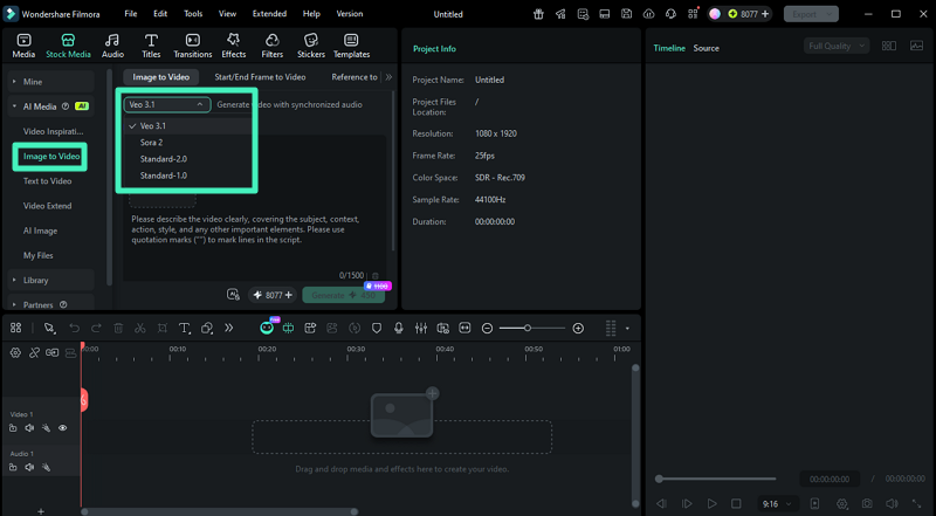
1. Image to Video – Veo 3
The Image to Video – Veo 3 mode in this AI video generator from image focuses on creating cinematic animations from a single image. The AI studies visual elements and generates realistic motion effects. Users can guide the animation through prompts and adjust settings like duration or resolution with the Veo 3 technology.
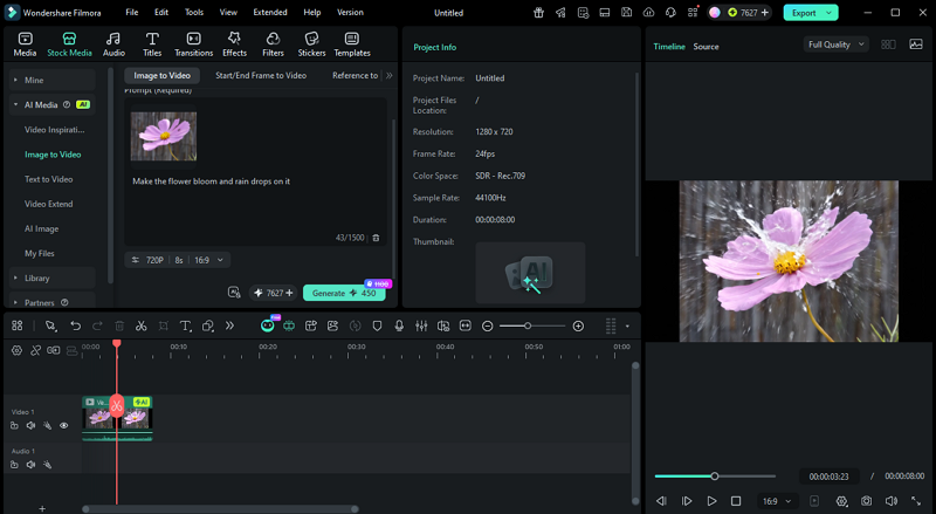
2. Image to Video – Sora 2
This image-to-video AI mode produces more imaginative and expressive animations. It interprets prompts and image details to generate stylized movement and creative visuals. Users can incorporate a prompt along with the image to customize the video according to their preferences.
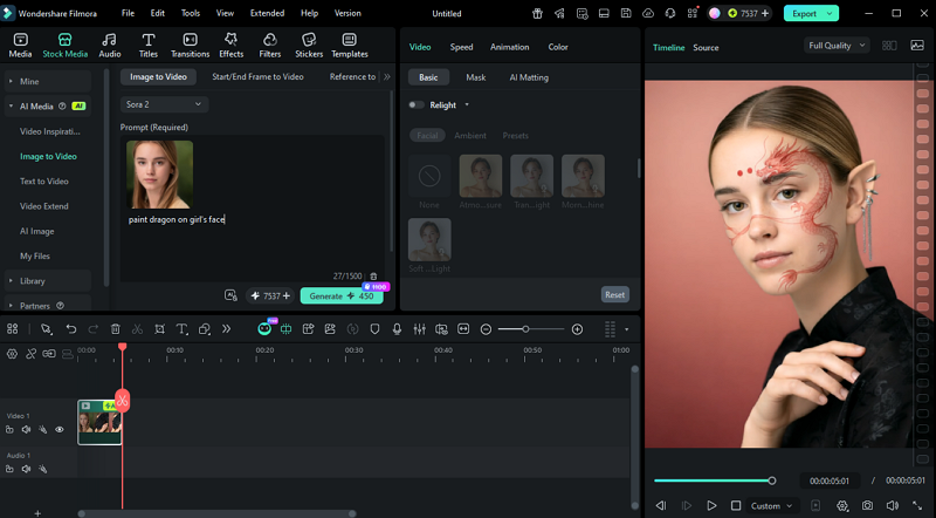
3. Image to Video – Standard
Filmora offers 2 standard photo-to-video AI modes, with faster, simpler generation. The AI applies basic motion, such as zoom, pan, and transitions, to static images. It focuses on speed and ease of use while still producing engaging clips. This option is suitable for quick social media videos or slideshow-style content.
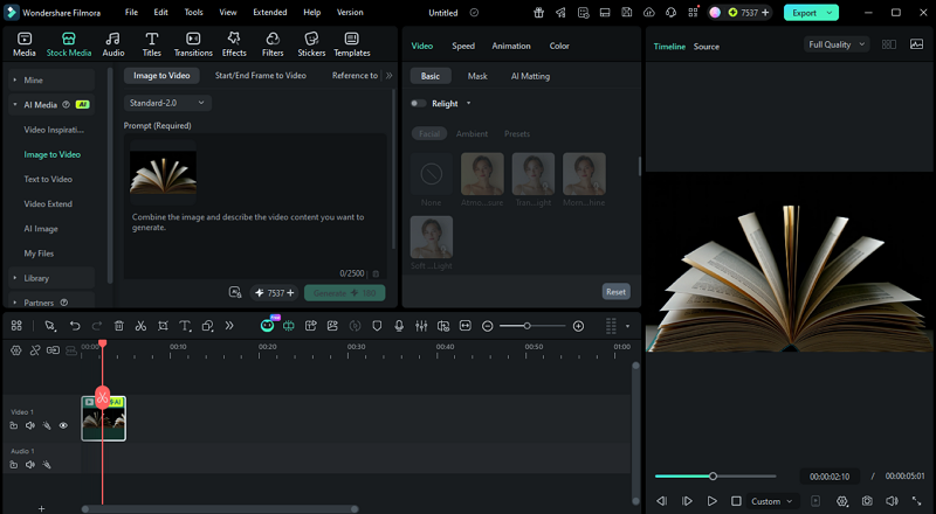
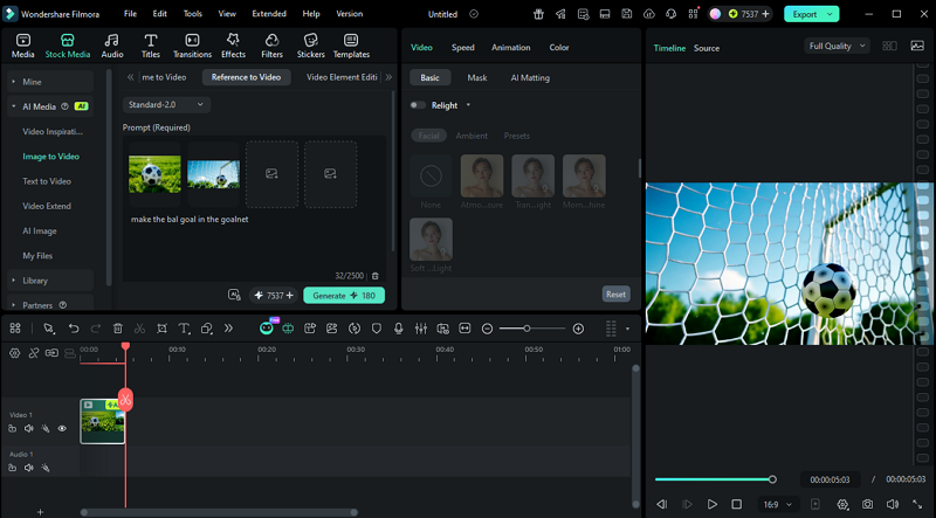
4. Image to Video – Reference to Video
The Image to Video AI mode helps maintain consistent visuals during generation. The AI uses reference images to guide animation style and composition. This ensures the final clip follows a particular look or theme. It is especially helpful for branded videos, story sequences, or projects that require visual consistency.
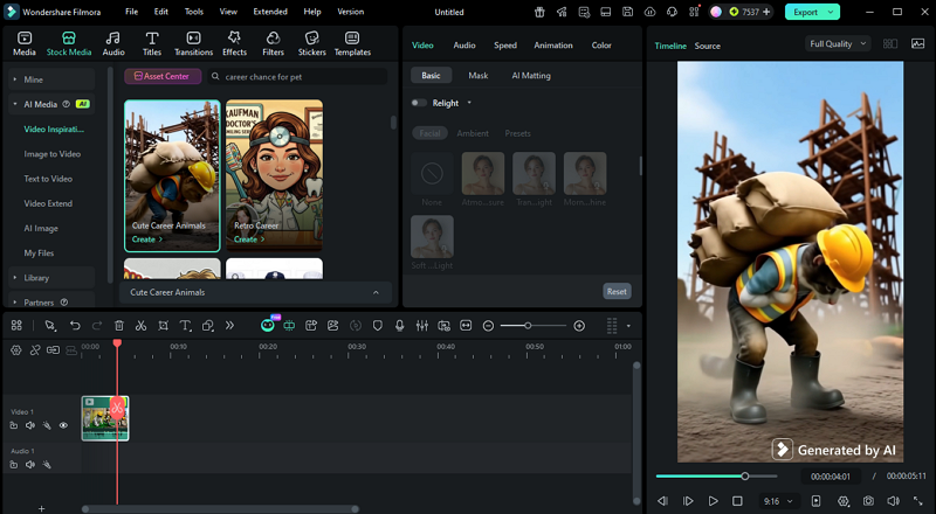
5. Image to Video – Inspiration Mode
Filmora’s Inspiration Mode for photo to video AI provides pre-made video templates that users can customize with their own images. Instead of generating motion from scratch, the AI adapts the uploaded photos to the template’s style, transitions, and animations. This makes it easy to create visually appealing videos quickly while maintaining a professional look.
Part 3. Complete Guide to the Image to Video AI Tool in Filmora
After learning about this AI video generator from an image in detail, let us have a look at the step-by-step guide on how to use it:
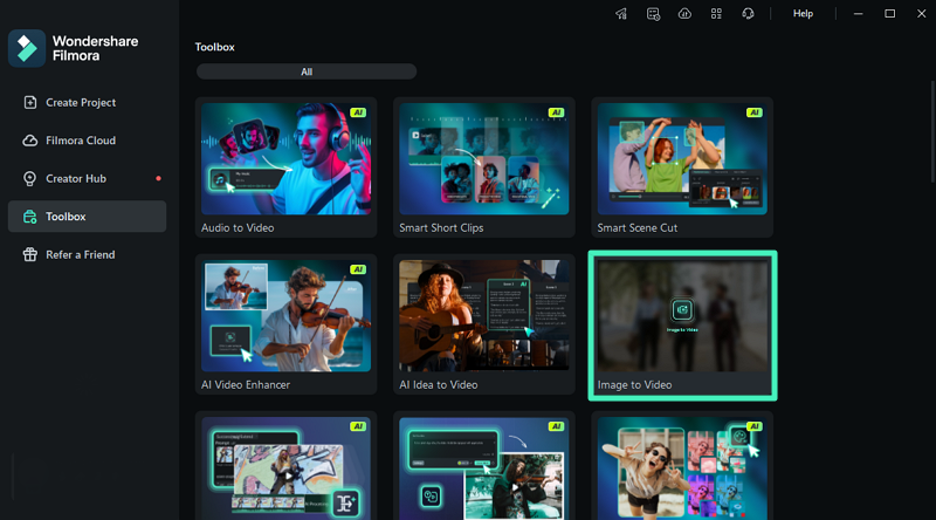
Step 1. Choose Image To Video Feature
To initiate, launch Filmora on your device and locate the “Image to Video” feature from the homepage.
Step 2. Select Generation Mode
In the next interface, enable the “Image To Video” section and select the mode by expanding the drop-down menu.
Step 3. Import Image Give Prompt
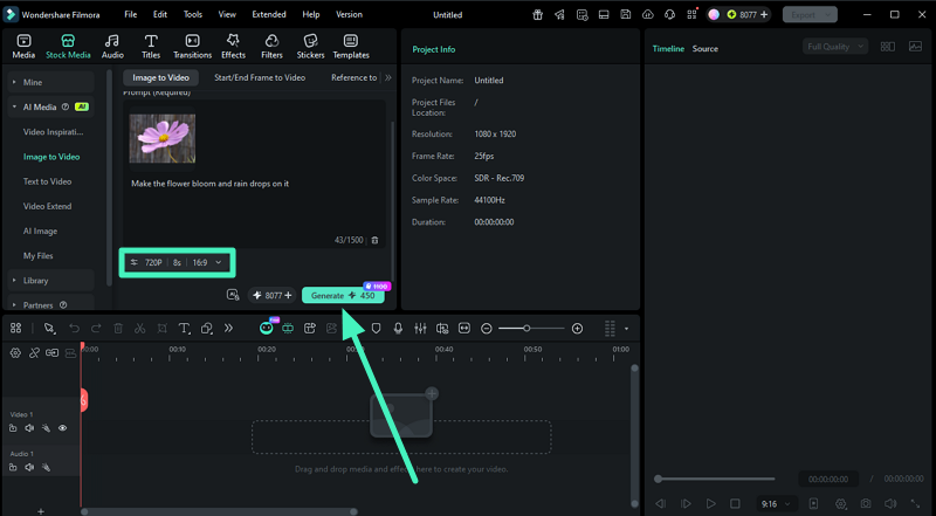
Moving forward, import the image that you want to convert into a video and input the text prompt in the designated field. Next, configure the settings such as resolution and duration, and hit the “Generate” button.
Step 4. Preview Generated Video and Export
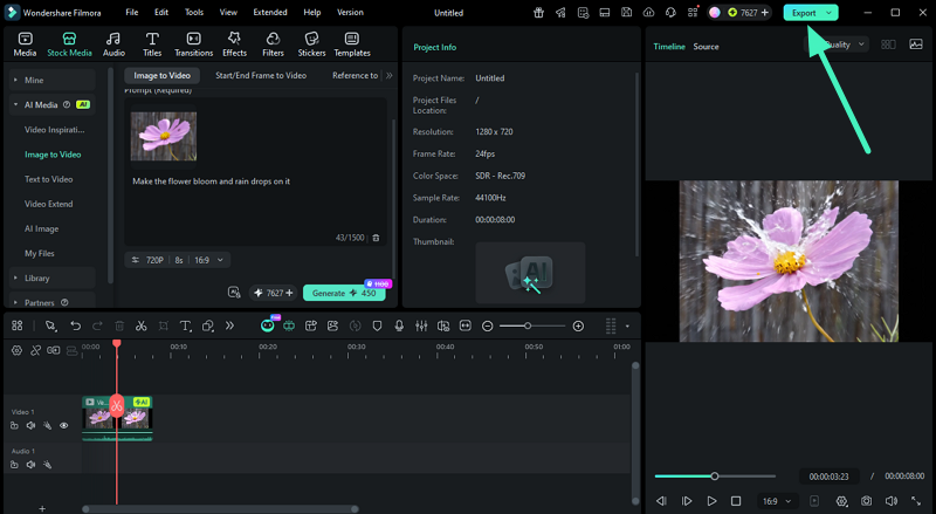
Once the video is successfully generated, preview it within the preview window and edit if required. When you are satisfied with the results, press the “Export” button to save the results.
Part 4. Creative Uses of Image to Video AI in Filmora
With the rise of AI-powered video creation, the creative potential of Image to Video AI in Filmora extends far beyond simple animations. Here is how users can leverage this feature to enhance their creativity:
- Social Media Clips: Transform everyday photos into dynamic short videos for Instagram, TikTok, or YouTube, boosting engagement with motion, transitions, and AI-generated effects.
- Marketing Content: Create professional promotional videos by turning product images or campaign visuals into animated clips that capture audience attention.
- Storytelling Projects: Build compelling narratives by animating character portraits, scenery, or event photos, enhancing presentations or creative projects.
- Educational Visuals: Make learning materials more engaging by converting diagrams, illustrations, or infographics into motion videos for classes or online courses.
- Personal Memories: Turn travel, family, or event photos into cinematic videos, preserving memories in a lively and shareable format.
Conclusion
To wrap it up, this article provided a detailed guide on Filmora’s image-to-video AI feature. Users can explore AI modes like Veo 3, Sora 2, Standard, Reference, and Inspiration. Each mode offers unique animation styles and creative options. Whether for social media, marketing, storytelling, or personal projects, Filmora’s Image to Video AI makes turning photos into dynamic videos easy, fast, and visually appealing.