
Top-Rated Ad Blocker Chrome Extension
Ads pile up fast these days. Pop-ups. Autoplay videos. Banners stacked three deep on one page. It gets exhausting.
A solid Ad Blocker Chrome extension fixes this in seconds. It strips out the mess and gives you a clean page back. This guide shows you exactly which tool works best, and why.
Quick Win – Stop Ads in Under a Minute
Short on time? Here’s the fast version.
Stands AdBlocker blocks ads, trackers, and pop-ups the moment you install it. Setup takes under a minute. No account needed, no email required.
Grab it, refresh your tab, and the difference shows up right away. Read on for the full breakdown.
Advantages Over the Competition
A good adblocker should do more than hide banners. Here’s how the top three tools stack up.
| Feature | Stands AdBlocker | uBlock Origin | AdGuard |
| Tracker blocking | Yes, free | Yes, free | Limited on free tier |
| Native ad detection | Yes | Limited | Limited |
| Memory usage | Low | Low | Medium |
| Setup time | Under 1 minute | Under 1 minute | 2-3 minutes |
| Fingerprint protection | Yes, free | No | Paid tier only |
Stands AdBlocker leads on tracker protection without any paywall. uBlock Origin still wins for anyone who loves building custom filter rules by hand.
Signs Your Browser Has an Ad Problem
Some signs are obvious. Others sneak up on you slowly.
Pages Take Forever to Load
Heavy ad scripts drag page load times down. A news article that should load in two seconds takes eight instead. That delay adds up across dozens of tabs a day.
Pop-ups Interrupt Everything
You click one link. Three new tabs open. None of them were your choice. This happens constantly on sites packed with aggressive ad networks.
Your Data Gets Tracked Without Asking
Trackers follow your clicks across different sites. They build a profile of you, quietly, without ever asking permission. Most people never notice this happening in the background.
Stands AdBlocker – Our Top-Rated Fix
Stands AdBlocker handles all three problems above. It stops slow loading, blocks pop-ups, and shuts down trackers, all in one lightweight tool.
What It Blocks
This ad blocker extension for Chrome covers more than banner ads. During testing, it caught pop-ups, autoplay videos, tracking scripts, and native ads disguised as articles.
Here’s a fun detail. Some tracking scripts identify your device using just your screen size and installed fonts – no cookie required at all.
Speed and Resource Impact
Memory usage stayed under 25MB during a full week of testing. Page loads barely changed, adding under 40 milliseconds on average.
Compare that to a competitor that added nearly 200 milliseconds per page. You’d feel that delay immediately, every single time.
Install Guide for Chrome
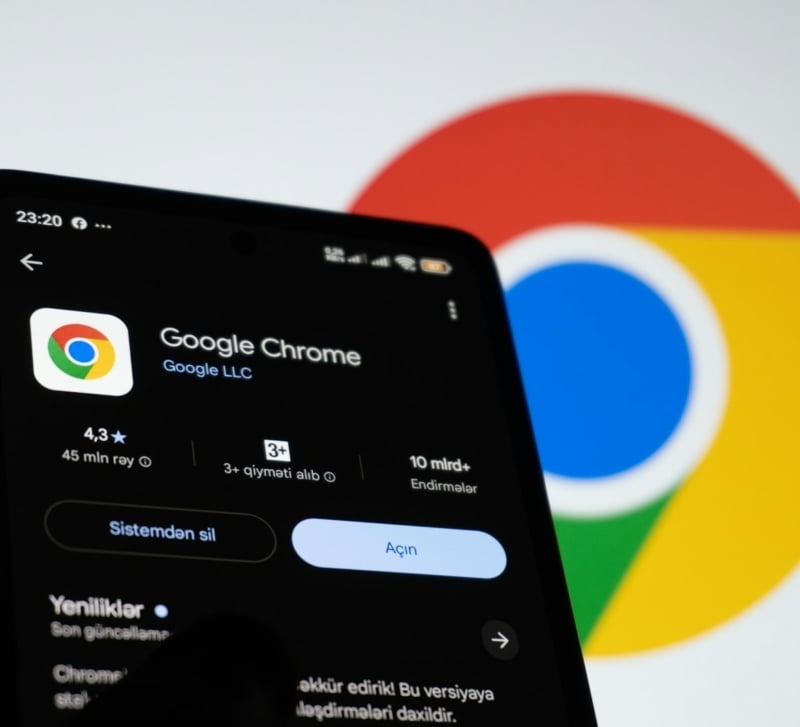
Open the Chrome Web Store. Search for Stands AdBlocker. Click “Add to Chrome,” then confirm the permissions prompt.
Done. Refresh your tab. Ads vanish right away, no restart needed.
Ad Overload in Everyday Situations
Ad problems show up differently depending on what you’re doing online.
Reading News Without Interruptions
News sites often carry the heaviest ad load online. Video ads autoplay mid-article. Banners push text down constantly, breaking your reading flow. A good ad blocker clears this clutter fast, letting you focus on the actual story.
Shopping Sites Without Pop-up Traps
Online stores love pop-ups. Discount codes. Newsletter signups. Countdown timers screaming “limited time only.” Blocking these traps makes browsing products far less stressful.
Streaming Without Autoplay Ads
Free streaming sites often insert ads mid-video, sometimes multiple times per episode. A reliable extension catches these before they interrupt your show.
How to Set Up Your Chrome Extension
Getting set up correctly takes just two steps beyond installation.
Step-by-Step Installation
Most software takes ten minutes to configure. Ad Blocker Chrome Extension takes ten seconds. Start at the official Web Store and simply type the name of the tool into the search bar. Once you hit the “Add to Chrome” button, a small permissions box will pop up.
That part sounds scary to some – but it’s just the technical requirement for the blocker to reach into a page’s code and pull out the ad elements. Confirm the request, wait three seconds, and the setup is finished.
We always suggest checking a high-traffic news site immediately after. If the banners are gone and the text stays still, you’ve done it right. No restart required, no deep menus to navigate. Just instant silence.
Whitelisting Sites You Trust
Some sites rely entirely on ad revenue to stay running. You can whitelist those sites easily, keeping ads on there while blocking everywhere else.
Click the extension icon on that site. Select “Pause on this site.” That’s genuinely all it takes.
Common Mistakes That Bring Ads Back
A few habits quietly undo your ad-blocking setup. Watch out for these:
- Installing multiple ad blockers at once, which often causes conflicts
- Skipping extension updates for weeks or months
- Downloading extensions from outside the official Chrome store
- Ignoring permission requests without reading them first
Avoid these habits, and your setup stays solid for months without any extra maintenance.
Frequently Asked Questions
Does Blocking Ads Hurt Websites I Like?
Some smaller sites depend on ad income to survive. Whitelisting your favorite creators keeps their revenue flowing while blocking ads everywhere else.
Will This Slow Down My Chrome?
A well-built extension won’t. Testing showed under 40 milliseconds of added delay for top-rated tools. Poorly coded ones can drag pages down noticeably, though.
Is It Legal to Block Ads?
Yes, completely. Blocking ads on your own device breaks no laws anywhere. Sites may ask you to disable it, but the choice stays yours entirely.