
How to Translate Text in Images: A Workflow for Screenshots, Product Shots and Infographics

To translate text in images you have to finish two separate jobs: read the words out of the image, and put the translated words back in so the layout still holds. Image translation is the name for both jobs together, and stopping after the first one leaves you with a paragraph of foreign text and an asset nobody can publish.
This is for web and marketing teams who ship the same page in more than one language and keep hitting the same wall: the copy is localized and the pictures are not. It covers text baked into raster images, so screenshots, product photos, infographics and ad creative. Video subtitles and document translation are different problems with different tools, and out of scope here.
Key takeaways
- Extracting the words and rebuilding the image are two jobs. Doing only the first one gets you nothing you can ship.
- What breaks after translation is almost never the wording. It is the layout, and short labels are the worst offenders.
- Some images should not be translated at all. The text belongs in your HTML instead.
How do you translate text in images?
Five steps, in this order: inventory the assets, extract the text, translate it, rebuild the image, and check the layout before anything goes live.
- Inventory. Walk the pages you are localizing and list every image whose text carries meaning. Most teams find two piles: with source files, and without.
- Extract. Pull the strings out so a person or a translation memory can see them as text.
- Translate. Run them through your normal process, glossary and product terminology included.
- Rebuild. Put the translated strings back, matching font, colour and position, and repair the background behind the old text.
- Check. Look at the finished file at the size it will be viewed, not at 200 percent zoom.
Steps 3 and 4 are where the tooling decision happens. For most of the last decade there was only one route: reopen the layered source file, drop in the new copy, and redraw whatever no longer fitted. That is still the honest answer when you own the source, but it was never an answer for the assets whose source files are long gone. Tools that read the image, translate the text and rebuild the background in one pass are what closed that gap.
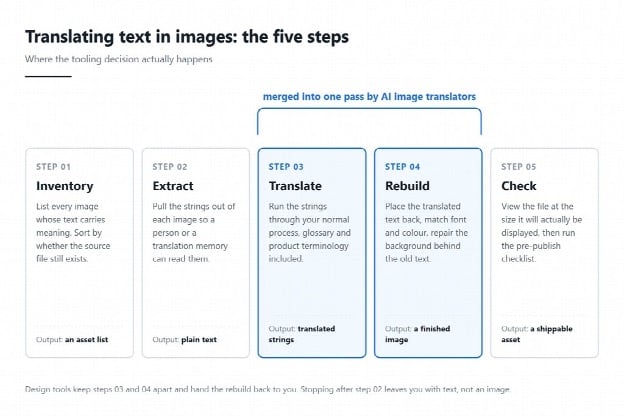
Steps 03 and 04 are the fork: design tools hand the rebuild back to you, AI image translators do both in one pass.
OCR pulls the words out. Image translation puts them back.
Search for either one and you will get both kinds of tool on the same page of results, which is how teams end up with a wall of extracted text and a deadline. The difference decides which category you should be opening.
| OCR / image-to-text | Image translation | |
| What you get back | A text string you can copy | A finished image file |
| Original layout | Discarded | Rebuilt around the translated text |
| Best for | Quoting, or feeding a translation memory | Shipping the asset itself |
| What is left to do | Retype and re-lay out the text yourself | Review the layout, then publish |
If the asset itself has to ship, you want a tool built to translate text in images and hand back a rendered file, not one that stops at the transcript. Before committing a workflow to any of them, check the accepted file types, the per file size cap, the languages covered, and whether batch processing sits behind a paid tier.
The workflow changes with the asset
The five steps stay the same. What changes is where each asset type is most likely to fail, so that is what you attack first.
| Asset | Biggest risk | Do this first |
| Product screenshots | UI wording drifts away from the product’s own translations | Pull the app’s existing string file and use it as the glossary |
| Product photos | Claims, units and regulated wording change per market | Get the localized claim approved before it is rendered into the image |
| Infographics | Axis labels and legends grow and collide with the chart | Leave slack around every label before you translate anything |
| Ad creative | Hard character limits per placement | Translate to the limit, not to the source string |
Screenshots have the most mature practice behind them. Crowdin’s engineering write-up on screenshot context describes a pipeline where a Storybook decorator records which translation keys appear in each component, Playwright captures the stories at several sizes, and CI retakes them whenever a pull request touches those files. On that project, Bounce manages 8,000 screenshots across 11 languages. The payoff, in Crowdin’s words, is that “context empowers translators to make informed decisions about the most appropriate translations.”
That pipeline shows screenshots to translators, the opposite trip from translating the screenshot itself. The glossary you build for one keeps the other consistent.
What breaks after you translate an image
The translation is usually fine. The layout is what breaks, and it breaks in six predictable ways.
- The text gets longer. The W3C’s guidance on text size in translation publishes IBM’s average expansion rates from English into European languages: strings up to 10 characters expand by 200 to 300 percent, while strings over 70 characters expand by around 130 percent. The same article measures the word “views” in Flickr’s interface at 2.8 times the English length in German and 3 times in Italian, with Korean at 0.8. As the W3C puts it, “the smaller the source message, the higher the likely translation length.”
- The font has no glyphs. A display face chosen for English falls back to something else the moment it meets Greek, Cyrillic, Thai or CJK, and the fallback rarely matches the weight you designed with.
- Direction flips. Arabic and Hebrew need the text right aligned, and often the whole composition mirrored.
- The alt text is still in English. Google’s image best practices call alt text “the most important attribute when it comes to providing more metadata for an image.” A translated image with an untranslated alt attribute is half localized.
- The filename never changed. The same documentation notes that filenames give “very light clues” about subject matter, with a blunt example: my-new-black-kitten.jpg beats IMG00023.JPG.
- The old file is still cached. Reusing a path for a new language, or skipping a cache purge, is why people swear the translation never went live.
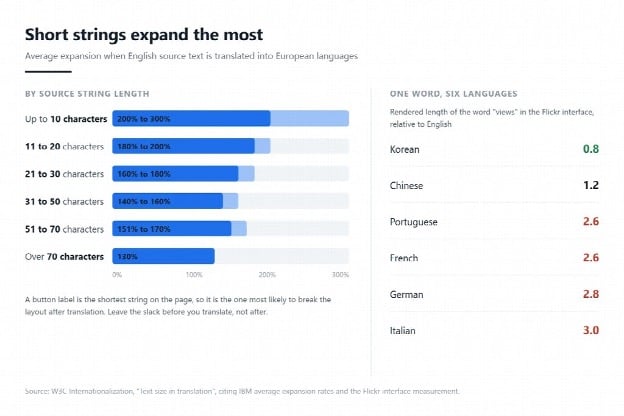
The shorter the source string, the worse the expansion. Button labels break first.
When you should not translate the image at all
If the text has to be searchable, change often, or exist in twenty languages, take it out of the image instead of translating it.
Google’s image documentation covers alt attributes, filenames and surrounding copy. It makes no claim about extracting readable text from inside the image file, so every word you bake into a picture is one you are choosing not to expose.
Some assets leave you no other route: third-party material you cannot rebuild, legacy files whose source is lost, and images where the lettering is part of the artwork. Make the call on purpose.
A pre-publish checklist for translated images
- Every string matches the glossary and the product’s own translations
- No label is clipped or overlapping at the size the image is displayed
- The rendered font supports the target script, and is the one you intended
- Right-to-left assets are aligned and mirrored where the composition requires it
- Alt text, caption and filename are localized alongside the image
- The new file is live at the URL the localized page requests, cache purged
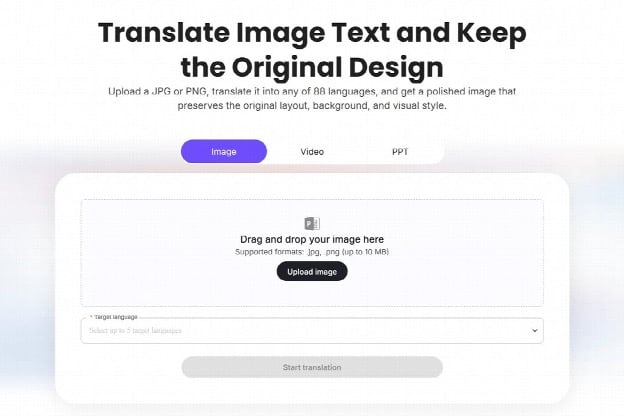
The limits worth checking before you commit: accepted formats, the file size cap, and how many target languages a single run allows.
FAQ
What is the difference between OCR and image translation? OCR reads text out of an image and returns a string. Image translation does that, translates it, then rebuilds the image with the translated text in place. OCR is a step inside image translation, not a substitute for it.
Will Google read the text inside my images? Google’s published image guidance covers alt text, filenames and surrounding copy, and does not state that it extracts readable text from the image file itself. Treat text baked into an image as text search engines are not being told about, and put anything that needs to rank into your HTML.
How many languages can an AI image translator handle? It varies widely, so check the product page rather than a review. Leadde’s image translator lists 88 languages and accepts JPG and PNG up to 10 MB, with batch translation reserved for enterprise accounts.
Start with the inventory, not the tool
Start with the inventory, not the tool. Once you know which images carry text and which still have source files, the tooling question mostly answers itself. Take one page you already publish in a second language, run its images through the five steps, and count how many of the six failure modes show up.