
15 Best AI Design Tools for UI/UX (2026 Ranking)

Designing digital products today goes far beyond moving shapes around on a canvas. Modern teams are expected to bounce between raw user interviews, interactive prototypes, frontend code, and marketing graphics without slowing down. That is where the best AI design tools step in. Instead of taking over your creative direction, these tools simply cut out the tedious manual chores at every stage of the process, helping you move from a rough idea to a finished product in a fraction of the time.
AI design tools are specialized software applications that leverage artificial intelligence to automate, enhance, and accelerate various stages of the digital product creation workflow, from user research and wireframing to UI layout generation and code export.
Below is our master comparison table of the top 15 solutions available today.
15 Best AI Design Tools for UI/UX in 2026
| # | Tool | Category | Key Strengths | Best For | Pricing |
| 1 | Flowstep | UI Generation | Multi-screen UI generation, Figma copy-paste, React/TS export | Multi-screen generation & developer handoff | Free plan, paid from $15/month |
| 2 | Figma AI | UI Generation | Native AI layer inside Figma, layer renaming, automated auto-layout | Edits within existing Figma files | Included in Figma plans |
| 3 | Framer AI | UI Generation | Prompt-to-web generation, responsive layouts, web publishing | Instant landing pages & live marketing sites | Free & Paid tiers |
| 4 | Maze AI | Research | Automated usability testing, AI transcript summaries, heatmaps | Automated user research & analytics | Free & Paid tiers |
| 5 | Dovetail | Research | Centralized research repository, thematic tagging, AI transcription | Qualitative research analysis | Free & Paid tiers |
| 6 | Notion AI | Research & Docs | Inline PRD generation, spec drafting, design system documentation | UX specs & product documentation | Paid add-on |
| 7 | Claude | Research & Copy | Long-context analysis, persona generation, microcopy refinement | UX copywriting & synthesis | Free & Paid tiers |
| 8 | Cursor | Development | AI code editor, project-aware autocomplete, natural language edits | AI-first frontend code execution | Free & Paid tiers |
| 9 | Claude Code | Development | Agentic terminal environment, large-scale codebase refactoring | Terminal-driven agentic coding | Usage-based |
| 10 | Bolt.new | Development | In-browser full-stack execution, web-container sandboxing | Instant full-stack web prototypes | Free & Paid tiers |
| 11 | Balsamiq | Wireframing | Low-fidelity AI wireframing, layout structuring | Rapid conceptual wireframing | Monthly subscription |
| 12 | Miro AI | Planning | Canvas generation, sticky-note grouping, flow diagramming | Whiteboarding & mind mapping | Included in Miro plans |
| 13 | Midjourney | Visual Assets | High-fidelity photorealistic generation, art styles | Moodboards & visual concept art | Monthly subscription |
| 14 | Recraft | Visual Assets | Native vector output, SVG editing, consistent icon sets | Custom vector graphics & icon sets | Free & Paid tiers |
| 15 | Khroma | Visual Assets | Personalized color pair learning, accessibility contrast checking | AI-generated color palettes | Free |
AI UI Design Generation & Code Export
1. Flowstep
Best for multi-screen AI UI generation with Figma copy-paste and React/TypeScript, Tailwind export.
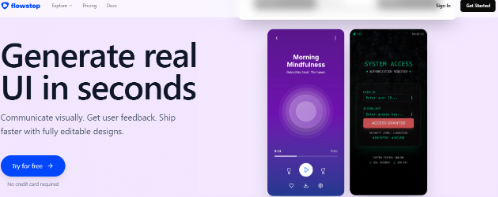
Designing full user journeys usually means building out dozens of connected screens one by one. Flowstep is an AI design tool that generates complete multi-step UI like onboarding sequences or checkout funnels from a single text prompt. What makes it genuinely useful is how easily it fits into real production pipelines. You can paste designs straight into Figma with ⌘C/⌘V (no plugin) or grab clean React, TypeScript, and Tailwind code.
What you get:
- Full-flow generation: Builds connected screen sequences with matching styles instead of standalone pages.
- Direct Figma pasting: Lets you copy editable UI designs straight to your Figma canvas.
- Clean code handoff: Converts generated designs into clean React, TypeScript, and Tailwind CSS.
- MCP connection: Connects to coding agents like Cursor and Claude Code.
Pricing: Has a free trial and a free plan to test things out. Paid plans run on monthly or annual subscriptions depending on whether you are a solo freelancer or a full product team.
Pros
- Native integration with Figma saves significant reconstruction time.
- High code quality that developers can use without heavy refactoring.
- Maintains visual consistency across complex multi-step user journeys.
Cons
Free tier is limited for heavy iteration.
2. Figma AI
Best for AI-assisted UI editing inside an existing Figma workflow
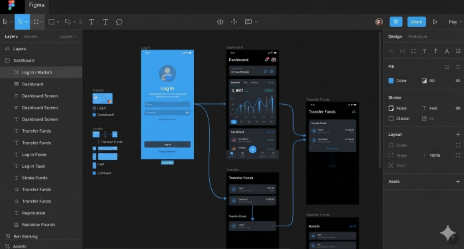
Figma AI brings intelligent automation directly into the industry-standard UI design tool. Rather than replacing your canvas, it sits alongside your existing layers to perform tedious tasks: renaming messy layers, generating first-pass layout drafts, replacing placeholder text with realistic data, and instantly searching your component libraries using image or text queries.
Key Features
- Contextual UI Generation: Creates starter layouts and UI components directly on your open canvas.
- Automated Layer Hygiene: Automatically renames messy layers and sets up Auto Layout constraints.
- Smart Content Replacement: Replaces lorem ipsum text with relevant copy and context-aware imagery.
- Visual Asset Search: Locates existing components in your team design system using visual similarity search.
Pricing
- Integrated into existing Figma tier structures (Starter, Professional, Organization, Enterprise).
Pros
- Zero workflow switching, operates entirely within Figma.
- Drastically reduces manual administrative tasks like layer naming.
- Respects existing design system component libraries.
Cons
UI output can sometimes feel generic without additional designer tweaking.
3. Framer AI
Best for turning prompts into live websites
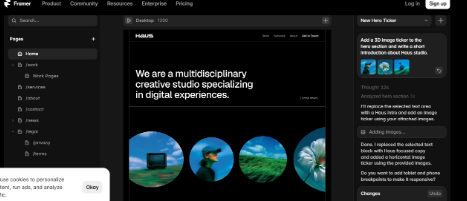
If you want to launch a landing page without spending days setting up grids and styles, Framer AI is hard to beat. You describe what you want, and it builds a flexible, responsive web design right on a visual canvas. The interface feels almost identical to Figma, so tweaking padding, fonts, or colors is completely natural.
Core Features
- Prompt-to-Site Builder: Generates full pages, including structure, text, and graphics, from simple descriptions.
- Linked Breakpoints: Automatically scales your design so it looks good on desktop, tablet, and mobile displays.
- Integrated CMS: Simple setup for managing dynamic content like blogs or portfolio case studies.
- Instant Hosting: Deploy your finished site straight to the web with custom domain support.
Pricing Offers a solid free tier to test things out. Paid plans scale from Mini up to Enterprise depending on traffic needs and custom domain setups.
Pros
- Unmatched speed from prompt to a live, published URL.
- Exceptional animation capabilities and smooth transitions.
- Highly responsive default layouts.
Cons
Better suited for marketing sites and web pages than complex web application dashboards.
Research & Product Thinking
4. Maze AI
Best for automated user testing and analytics
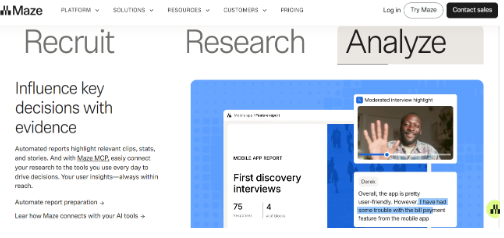
Maze AI cuts out the manual grind of running usability tests. You just link your Figma prototypes, and the platform handles the heavy lifting, it sets up unmoderated tests, recruits participants, and processes the incoming data. Instead of spending hours watching raw session recordings, its AI automatically flags drop-off points, clips key video moments, and packages user feedback into clear, actionable insights.
Key Features
- Instant Test Creation: Turns your Figma prototypes into structured usability tasks without extra setup.
- Video Highlights: Automatically pulls out user pain points and clips crucial moments from recording sessions.
- Hard Data & Metrics: Tracks real user behavior using visual heatmaps, click paths, misclicks, and completion stats.
- Quick Summaries: Condenses messy qualitative feedback into clean reports ready to share with stakeholders.
Pricing Includes a free tier for basic testing. Paid options (Professional and Organization) scale up based on team seats and response volume.
Pros
- Cuts down days of manual work spent reviewing prototype tests.
- Connects visual heatmap data directly with real video transcripts.
- Works smoothly right inside your existing Figma workflow.
Cons
Advanced filtering and participant recruiting require higher-tier plans.
5. Dovetail
Best for keeping customer research in one place
Searching through messy Drive folders or Slack threads for one customer quote is an absolute nightmare. Dovetail fixes that messy process completely. Throw your calls, support logs, or survey spreadsheets right in. The tool converts audio into text, tags common complaints automatically, and keeps your entire team research history searchable.
Main capabilities:
- Converts video and voice recordings into text while identifying different speakers automatically.
- Groups similar customer complaints, feature requests, and habits across separate projects.
- Cuts together short video clips based on tags so you can show real user reactions in stakeholder meetings.
- Gives your whole company a single searchable database for historical user research.
Pricing
Tiered plans starting from individual researcher plans up to Enterprise workspace models.
Pros
- Prevents valuable research data from being forgotten in scattered folders.
- Makes qualitative video interviews searchable and taggable at scale.
- Excellent collaboration tools for product managers and designers.
Cons
Requires initial setup effort to build tag taxonomies effectively.
6. Notion AI
Best for writing specs and product docs
Writing Product Requirement Documents (PRDs) and sorting out rough brainstorm notes usually takes up way too much time. Notion AI speeds that up right inside your workspace pages. You can drop in a messy list of bullet points, and it drafts feature briefs, converts customer feedback notes into sorted tables, or writes out detailed user stories on the fly.
What you can do with it:
- Turns simple rough notes into drafted PRDs, design specs, or release notes instantly.
- Takes unstructured user feedback and formats it into clean tables with custom tags.
- Lets you ask direct questions about any internal document saved across your team Notion workspace.
- Cleans up awkward wording and sharpens your internal documentation.
Pricing:
It works as a paid add-on fee on top of your standard Notion workspace plan.
Pros
- It keeps all your product documentation right next to your team task boards and planning pages without forcing you to switch apps.
- Greatly accelerates PRD writing and feature scoping.
- Easy to share across non-design stakeholders.
Cons
Generates text only, does not produce native UI shapes or diagrams.
7. Claude
Best for UX copywriting, personas, and research synthesis

Dump a 50-page interview transcript into standard AI models, and they completely forget the first half by the time they reach the end. Claude does not have that problem. Because it handles massive chunks of text at once, it is easily my favorite option for heavy research work. Throw in raw survey spreadsheets, full user session transcripts, or competitor teardowns. It spits back solid insights, persona drafts, or microcopy options without dropping details.
Where it actually helps:
- Read entire books, dense research reports, or hours of user transcripts in one go without losing context.
- Writes button labels, tooltips, error messages, and onboarding copy that match your brand’s actual tone.
- Maps out realistic user personas using real quotes pulled directly from your customer calls.
- Breaks down competitor feature lists and app store reviews so you can spot market gaps fast.
Pricing
- Free access available; Claude Pro subscription offers priority access and higher usage limits.
Pros
- Exceptional reasoning abilities and natural-sounding human copy.
- Handles huge research files without losing context.
- Great at refining tone for specific target audiences.
Cons
Purely text-based conversational interface (requires manual copy-pasting).
Development & Coding
8. Cursor
Best AI-first code editor for frontend work
Cursor is basically VS Code, but with an AI engine baked into its core. If you build UI components or write frontend code, it completely changes how fast you work. Instead of manually editing CSS or hunting down state bugs, you just highlight code, type what you want in plain English, and watch it rewrite the logic. Since it indexes your whole project folder, it actually understands how your components talk to each other across different files.
Key Features
- Project-Wide Awareness: Indexes your entire codebase to provide context-aware suggestions and edits.
- In-Line Code Generation: Allows inline edits (Cmd + K) to rewrite CSS, React components, or state logic instantly.
- Terminal Integration: Detects build errors and suggests immediate code fixes.
- Model Choice: Switch between top AI models to power your development setup.
Pricing
- Free tier available; Pro tier provides unlimited fast AI requests and advanced context indexing.
Pros
- Identical interface to VS Code, eliminating any learning curve for existing extension setups.
- Incredibly fast code generation and error fixing.
- Deep understanding of complex component dependencies.
Cons
Requires technical knowledge of frontend code bases to review suggestions properly.
9. Claude Code
Best for agentic coding and large refactors from the terminal
Claude Code brings an agentic coding partner directly into your command line interface (CLI). Designed for developers and technical designers, it reads your project structure, executes terminal commands, runs tests, and performs multi-file code refactors autonomously while keeping you in the loop.
Key Features
- Agentic Workflows: Executes multi-step tasks across several files without requiring manual intervention for every step.
- Terminal Integration: Runs git commands, package installations, and test suites natively.
- Codebase Refactoring: Refactors entire design token structures or component libraries across an application.
- Git Commit Automation: Analyzes diffs and generates descriptive commit messages automatically.
Pricing
- Powered by API usage charges based on token consumption.
Pros
- Handles complex, multi-file code modifications effortlessly.
- Operates directly inside your terminal workflow.
- Excellent at debugging tricky build and configuration errors.
Cons
Command-line only interface requires familiarity with terminal environments.
10. Bolt.new
Best for full-stack app generation in the browser
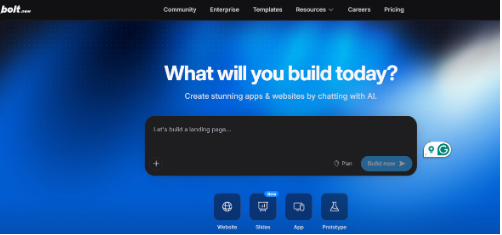
Building a working app prototype usually means spending half an hour setting up local node environments, installing packages, and fixing config errors before you even see a single pixel. Bolt.new skips all of that setup entirely. You type in what you want to build, and it spins up a full WebContainer right inside your browser tab. It installs necessary npm packages, writes backend logic, sets up UI components, and displays a live, clickable preview right beside your code window.
What makes it useful:
- Runs Node.js servers, npm dependencies, and frontend build tools directly in your browser without local terminal setups.
- Builds complete features end-to-end, handling both the frontend visual layout and the backend API endpoints.
- Shows a live interactive preview panel that updates instantly while the code generates.
- Lets you publish working web app prototypes straight to live hosting services in one click.
Pricing:
Has a free tier with daily token limits. Upgrading to a Pro plan unlocks private projects and higher daily token allowances.
Pros
- Zero local environment setup required to test interactive prototypes.
- Generates functional, working web applications rather than static code.
- Allows live interaction and manual editing alongside AI prompts.
Cons
Token consumption can be fast during intensive app iterations.
Wireframing & Planning
11. Balsamiq
Best for AI-assisted low-fidelity wireframing
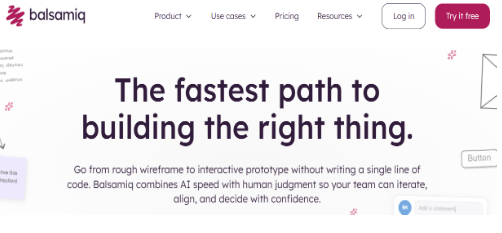
Designing polished interfaces too early usually backfires. Stakeholders start picking apart button shades and font choices instead of fixing broken user flows. Balsamiq saves you from that headache. It keeps layouts looking deliberately hand-drawn, forcing everyone to talk about page hierarchy, structure, and user logic instead of visual polish. Its added AI capabilities make drafting even faster, you simply type a quick description of the screen you are thinking of, and it generates a rough sketch on the spot.
Key Features
- Sketch-Style UI Library: Displays interfaces in a deliberate hand-drawn style to keep discussions focused on structure.
- AI Screen Layouts: Translates structural prompts into low-fidelity UI block arrangements.
- Drag-and-Drop Canvas: Easy manual editing of generated low-fi components.
- Clickable Prototype Linking: Connects wireframe screens together for basic interactive presentation flows.
Pricing
- Available via Cloud, Desktop, or integration extensions with monthly subscription pricing per project/user.
Pros
- Prevents premature focus on high-fidelity styling during early product strategy phases.
- Extremely easy for non-designers and product managers to learn.
- Clean visual language for structural discussions.
Cons
Not designed for high-fidelity UI design or direct production code export.
12. Miro AI
Anyone who has ever run a design sprint knows the post-workshop nightmare: staring at a wall of 200 random sticky notes and trying to make sense of them. Miro AI saves you from that manual chore. It sits directly on your digital board and handles the cleanup for you. Drop all your raw team ideas onto the canvas, and it groups similar sticky notes together, maps out user flow charts, and drafts mind maps in seconds.
What you can actually do with it:
- Sorts messy sticky notes by topic, user sentiment, or priority so you do not have to drag them around one by one.
- Turns simple descriptions into clean flowcharts, mind maps, and user journey diagrams on the spot.
- Pulls clear next steps and quick summaries out of massive, chaotic whiteboarding sessions.
- Generates custom workshop layouts on the fly based on what your team is trying to achieve.
Pricing
- Integrated into free and paid Miro subscription tiers.
Pros
- Accelerates post-workshop synthesis from hours to minutes.
- Keeps strategy and visual planning on a single collaboration board.
- Great for cross-functional alignment between engineering, design, and management.
Cons
Generated diagrams often require manual repositioning on busy boards.
Visual Assets & Imagery
13. Midjourney
Best for concept art and imagery
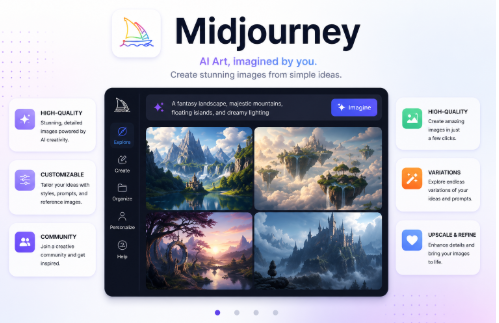
Midjourney remains the premier generative AI tool for hyper-realistic visual concept generation, abstract illustrations, and hero image assets. Designers use it during moodboarding phases to explore visual directions, custom textures, digital art styles, and background imagery for marketing visuals.
Key Features
- High-Detail Rendering: Produces high-resolution images with photorealistic lighting and artistic control.
- Style Reference Matching: Uses existing reference images to maintain consistent visual aesthetics across prompts.
- Vary Region (Inpainting): Allows selective editing of specific sections inside a generated image.
- Pan & Zoom Controls: Expands image canvas boundaries seamlessly in any direction.
Pricing
- Monthly tier subscriptions operating on a GPU-time allocation system via Discord or web interface.
Pros
- Highest aesthetic quality and artistic output on the market.
- Deep control over composition, lighting, camera angles, and styles.
- Ideal for moodboards and marketing art direction.
Cons
Outputs raster images (PNG/JPG) rather than editable UI vectors.
14. Recraft
Best for AI vector graphics and icons
Recraft is an AI design tool built specifically for graphic and UI designers who need vector assets. Unlike pixel-based image generators, Recraft generates native SVGs, vector icons, 3D assets, and illustrations that match your exact brand color palettes and line-weight styles.
Key Features
- Native SVG Generation: Outputs scalable vector graphics with clean paths and editable nodes.
- Icon Set Consistency: Generates entire families of icons with consistent line weights and visual styles.
- Custom Color Palette Control: Restricts generated graphics to your precise brand hex codes.
- Vector Editing Canvas: Includes tools to select, move, and edit vector paths directly within the application.
Pricing
- Free tier available; paid plans provide commercial usage rights and private generations.
Pros
- Generates true vector files (SVG) ready for direct web and UI implementation.
- Exceptional style-matching for icon sets and illustration libraries.
- Gives granular control over brand color palettes.
Cons
- Requires some vector graphic knowledge to tweak paths after generation.
15. Khroma
Best for free AI color palettes
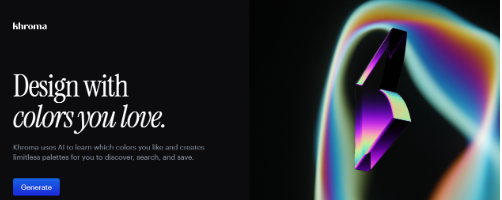
Finding color schemes that look great and actually meet readability standards is always a hassle. Khroma fixes that by building a custom generator around your personal taste. When you open it up, you pick a handful of colors you like, and its algorithm learns your preferences. From there, it pumps out endless color pairs, gradients, and typography setups tailored to you, while making sure the text and background contrast stays readable.
What makes it useful:
- Trains on your personal color choices during setup so you do not have to sift through random palettes.
- Checks contrast automatically so your text and background pairings stay WCAG compliant.
- Shows color pairs across different formats, including typography layouts, visual cards, and gradients.
- Filters palettes by hue, saturation, warmth, and exact contrast scores.
Pricing
- 100% Free to use in your web browser.
Pros
- Personalized to your specific design taste rather than random palette generation.
- Prioritizes WCAG accessibility compliance for UI readability.
- Completely free resource.
Cons
- Focuses exclusively on color pairings rather than broader design elements.
Final Thoughts: How to Choose the Right AI Design Stack
No single tool handles every aspect of the modern design workflow. The key to maximizing efficiency is building a complementary stack that covers each stage of product creation:
- For UI Generation & Code Hand-off: Combine Flowstep for multi-screen UI generation with Figma AI for inline canvas edits.
- For Research & Strategy: Use Claude for quick synthesis and copywriting alongside Dovetail for qualitative insights.
- For Engineering Alignment: Pair Cursor or Bolt.new with your UI tools to eliminate the gap between design comps and working code.
- For Visual Design & Brand: Leverage Recraft for UI vectors and Khroma for accessible color palettes.
By picking the right tool for each specific phase, you can automate manual repetitive tasks, keep your team aligned, and ship better products in a fraction of the time.
Frequently Asked Questions About AI Design Tools
How do AI design tools improve product development speed?
AI design tools eliminate manual repetition across every stage of the product lifecycle. Instead of spending hours transcribing user feedback, organizing messy layers, or drafting basic UI components, design teams can use these tools to generate multi-screen flows and specs instantly. This allows designers to move from raw concepts to testable prototypes in a fraction of the time.
Are AI design tools compatible with Figma and existing workflows?
Yes, most modern AI design tools are built to integrate directly into existing design pipelines. Options like Figma AI work natively within your canvas, while tools like Flowstep allow you to generate full user flows and paste editable UI designs directly into Figma without losing Auto Layout structures or spacing rules.
Can AI design tools generate clean code for developers?
Many specialized AI design tools can convert visual layouts directly into production-ready code. Advanced UI generators and code editors produce clean React, TypeScript, and Tailwind CSS, allowing developers to inspect components and implement functional frontend interfaces without building them from scratch.
How do teams choose the best AI design tools for their stack?
Rather than relying on a single platform, effective teams build an “AI design stack” tailored to their specific friction points. For example, you might use Claude for research synthesis and microcopy, Flowstep or Figma AI for multi-screen UI layouts, Recraft for vector icons, and Cursor or Bolt.new for frontend implementation.